
Managing Slides
Once you have created slides, you can switch between them, reorder them, and manage the markers on each slide using the Layers panel.
Switching Between Slides
Click any slide thumbnail in the slide sidebar on the left to make it the active slide. The active slide is highlighted with a blue border, and its content is displayed on the canvas.
The toolbar subtitle updates to show the current slide’s name and type (e.g., “3D Space Slide - VR/3d” or “Around Me Slide - AR/ar…”).
Tip
You can also navigate between slides using behavior actions like Navigate (go to a specific slide) and Navigate Back (return to the previous slide). These are configured in the Behaviors section.
Reordering Slides
You can reorder slides by dragging and dropping their thumbnails in the slide sidebar. Click and hold a slide thumbnail, then drag it up or down to the desired position. The slide numbers update automatically to reflect the new order.
The Layers Panel
The Layers panel gives you a detailed view of every marker on the current slide. Open it by clicking Layers in the toolbar or pressing L on your keyboard.
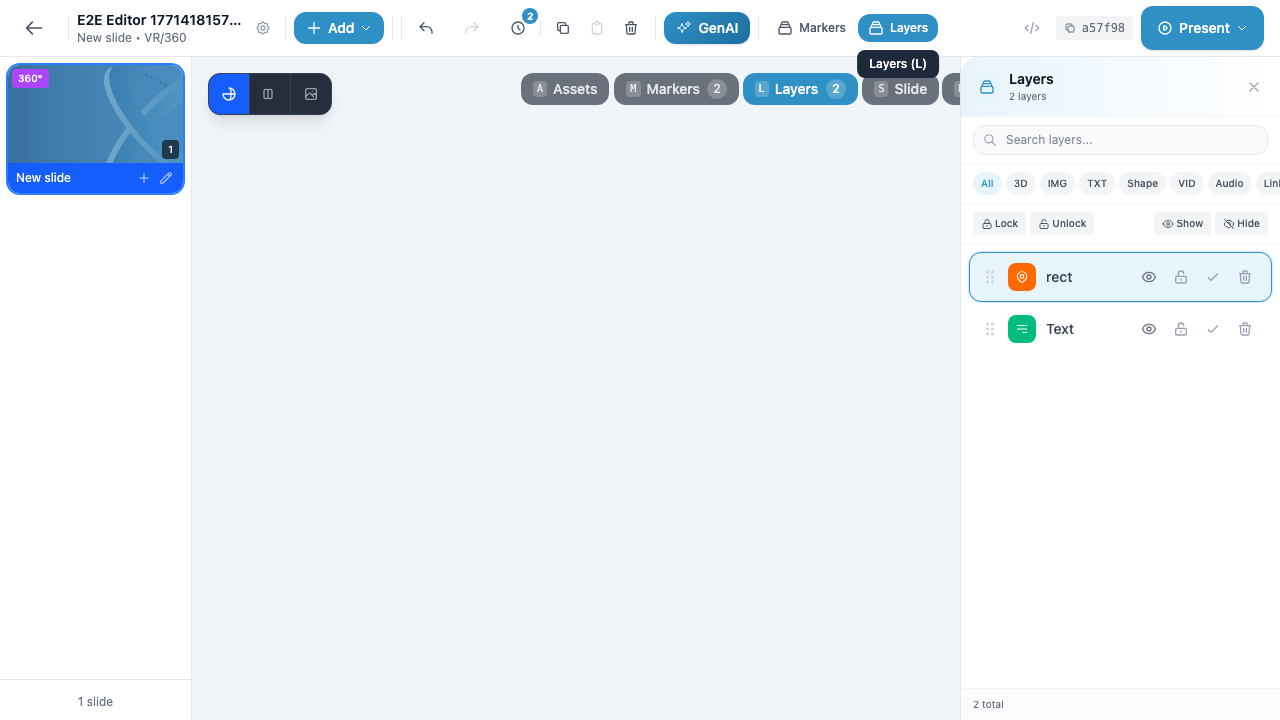
The panel header shows the total layer count (e.g., “2 layers”) and the bottom of the panel displays the total count for the current filter.
Layer List
Each row in the Layers panel represents a single marker on the slide. Every layer row displays:
- Drag handle (dots icon) — Reorder the marker’s z-order by dragging
- Type icon — A colored icon indicating the marker type (e.g., green for shapes, blue-green for text)
- Marker name — The name of the marker (e.g., “rect”, “Text”)
- Visibility toggle (eye icon) — Show or hide the marker on the canvas
- Lock toggle (lock icon) — Lock the marker to prevent accidental edits
- Select toggle (checkmark icon) — Select or deselect the marker
- Delete button (trash icon) — Remove the marker from the slide
Clicking a layer row selects that marker on the canvas, making it easy to find and edit specific markers in complex slides.
Filtering Layers by Type
At the top of the Layers panel, you will find a row of type filter buttons that let you narrow down the layer list:
| Filter | Shows |
|---|---|
| All | Every marker on the slide |
| 3D | 3D icons, 3D shapes, 3D objects |
| IMG | Image markers |
| TXT | Text markers |
| Shape | 2D and 3D shape markers |
| VID | Video markers |
| Audio | Audio markers |
| Link | Link markers |
The active filter is highlighted. Click All to return to the full list.
Info
Filtering only affects the display in the Layers panel — it does not hide markers from the canvas. To hide a marker on the canvas, use the visibility (eye) toggle on the individual layer row.
Searching Layers
The Search layers… text field at the top of the panel lets you filter markers by name. Type any part of a marker’s name and the list will update in real time to show only matching results. Clear the search field to restore the full list.
Bulk Layer Controls
Below the filter buttons, the Layers panel provides bulk controls that apply to all visible layers (respecting the current filter):
- Lock / Unlock — Lock or unlock all layers at once to prevent or allow editing
- Show / Hide — Toggle visibility for all layers at once
These bulk controls are helpful when you want to quickly lock a set of markers while you work on others, or temporarily hide all markers to focus on the slide background.
Slide Information
When you select a slide, the top-left area of the canvas displays a slide info badge showing:
- The slide name (e.g., “3D Space Slide”)
- The slide type and subtype (e.g., “VR - 3d”)
- The marker count (e.g., “0 markers” or “2 markers”)
This gives you a quick reference for the current slide without needing to open any panels.
Panel Buttons
The top-right corner of the canvas provides quick-access buttons for toggling editor panels:
| Button | Shortcut | Purpose |
|---|---|---|
| Assets | A |
Browse and manage uploaded media assets |
| Markers | M |
View the markers overview for the current slide |
| Layers | L |
Open the Layers panel (detailed layer management) |
| Slide | S |
View and edit slide-level properties |
| HUD | H |
Configure the Heads-Up Display overlay |
Warning
The Layers panel and the Properties panel share the same screen area on the right side of the editor. Opening one will close the other. To switch between them, use the toolbar buttons or keyboard shortcuts.