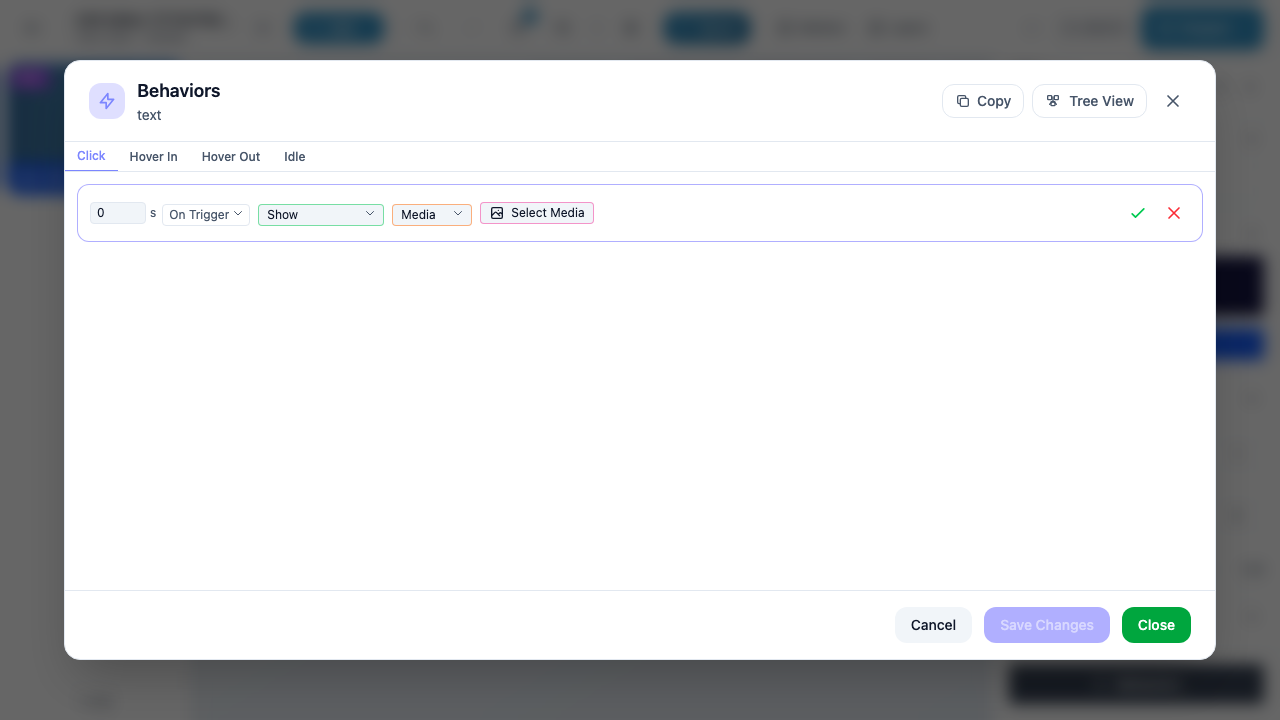
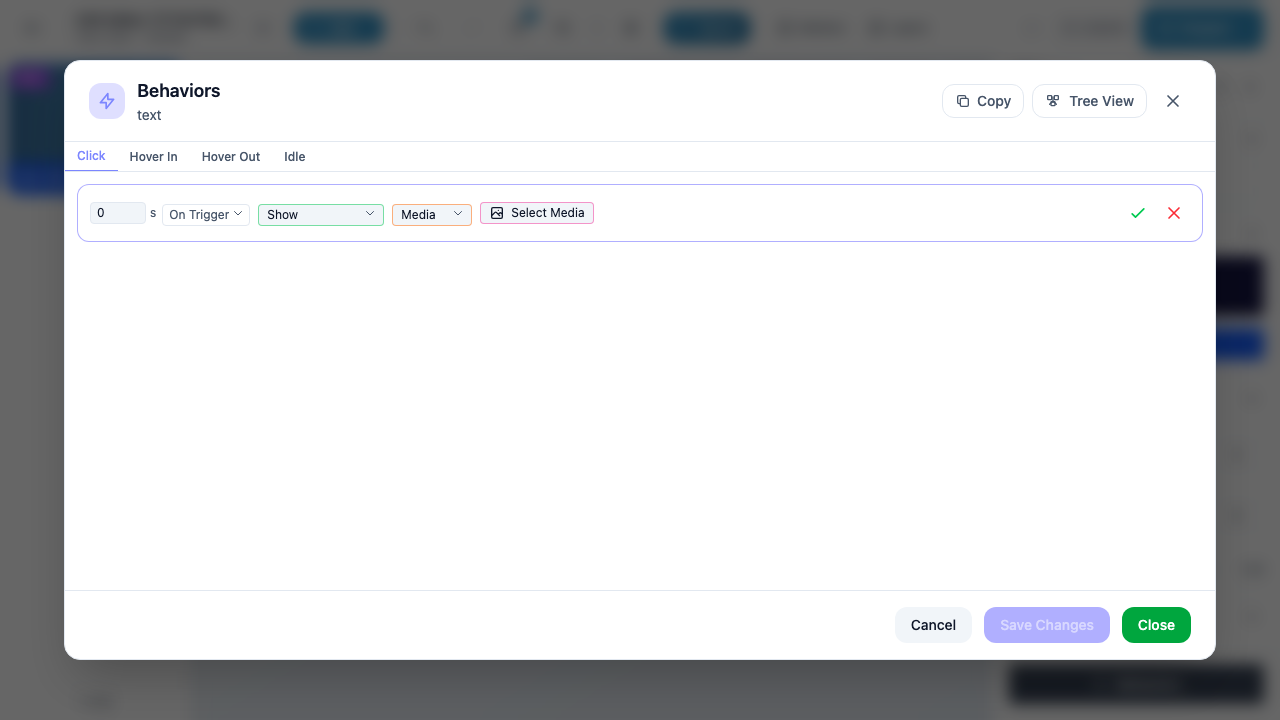
Behavior Actions
Actions define what happens when a behavior’s trigger fires. Each behavior row in the Behaviors modal represents a single action: a specific thing to do (navigate, show, hide, play, etc.) applied to a specific target (a slide, a marker, a media item, etc.).
Creating a Behavior Action
To add a new behavior action to a marker:
- Open the Behaviors modal for a marker (select the marker, open Properties, click Behaviors)
- Choose a trigger tab at the top (Click, Hover In, Hover Out, Idle, etc.)
- Click the + Add [Trigger] Behavior button at the bottom of the modal (e.g., “+ Add Click Behavior”)
A new editable row appears with dropdown fields for you to configure.
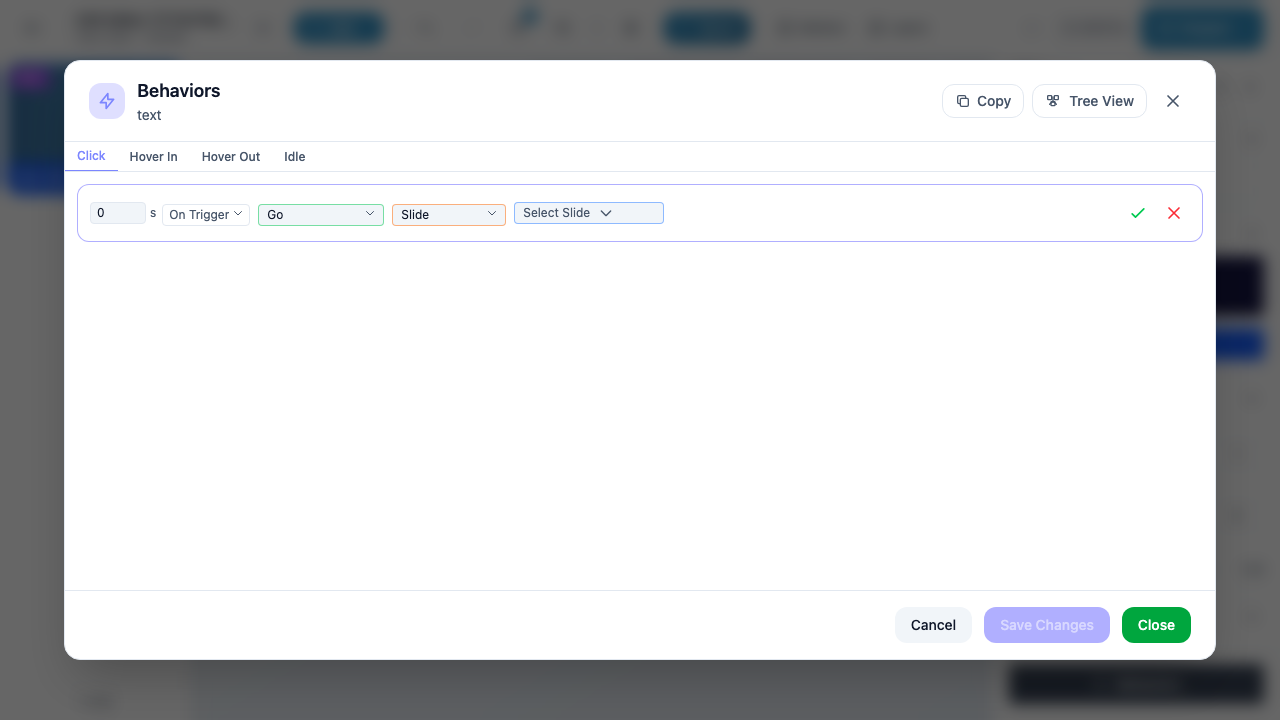
The Behavior Row
Each behavior is displayed as a single row with the following fields, read from left to right:
| Field | Description | Example Values |
|---|---|---|
| Delay | Number of seconds to wait before executing the action. Enter 0 for immediate execution. |
0, 1, 2.5 |
| Timing | When the delay countdown starts (see Timing Options below) | On Trigger, With Previous, After Previous |
| Action | What to do when the behavior fires (see Action Reference below) | Go, Show, Hide, Play, Pause |
| Target Type | The category of element the action targets | Slide, Content, Media, Object |
| Target | The specific element to act on — a dropdown or selector for choosing which slide, marker, media, etc. | Next Slide, a specific slide name, a specific marker |
Info
Not all fields appear for every action. For example, Go with target type Next Slide or Previous Slide does not need a target selector because the destination is already implied. LMS tracking actions show an LMS value field instead of a target selector.
Timing Options
The timing dropdown controls when the delay countdown begins relative to other behaviors in the same trigger group:
| Timing | API Value | Description |
|---|---|---|
| On Trigger | trigger |
The delay starts counting from the moment the trigger fires. This is the default and most common option. |
| With Previous | prev_action_start |
The delay starts counting from when the previous behavior in this trigger group starts executing. Use this to run multiple actions in parallel with a slight offset. |
| After Previous | prev_action_finish |
The delay starts counting from when the previous behavior in this trigger group finishes executing. Use this to chain actions sequentially. |
Tip
If this is the first (or only) behavior for a trigger, only On Trigger is available since there is no previous behavior to reference.
Action Reference
Actions are organized into categories: Navigation, Visibility, Media, Interactive, Data/Storage, and LMS Tracking.
Navigation Actions
Navigate the viewer to a different slide in the presentation.
| Action | Description | Target Type | Target Options |
|---|---|---|---|
| Go | Navigate to a specific slide | Slide | Next Slide – advance to the next slide in order. Previous Slide – go back one slide. Slide – pick a specific slide from a dropdown. |
Tip
“Go to Next Slide” on the last slide of a presentation will loop back to the first slide. “Go to Previous Slide” on the first slide has no effect.
Visibility Actions
Control whether markers are visible or hidden in the scene. These actions target markers (referred to as “Content” or “Object” in the target type dropdown).
| Action | Description | Target Type | Target Options |
|---|---|---|---|
| Show | Make a hidden marker visible in the scene | Content, Media, Link, Text, Object | Select the specific marker to show |
| Hide | Hide a visible marker from the scene | Content, Object | Select the specific marker to hide |
Info
Show and Hide affect the marker’s runtime visibility. The marker still exists on the slide – it is just not rendered for the viewer until a Show action reveals it. To permanently remove a marker, use the Remove action instead.
Media Actions
Control playback of media markers (video, audio, images) and background videos.
| Action | Description | Target Type | Target Options |
|---|---|---|---|
| Play | Start or resume playback of a media element | Media, Object, Background Video | Select the media marker or background video to play |
| Pause | Pause playback of a media element | Background Video, Object | Select the media marker or background video to pause |
Tip
Use Play with a delay to auto-start a video a few seconds after the slide loads. Combine with an Idle trigger to play media when no one is interacting.
Interactive Actions
Actions that modify markers or open external resources.
| Action | Description | Target Type | Target Options |
|---|---|---|---|
| Show Results | Display the results of a poll marker | – | Applies to the poll itself |
| Remove | Permanently remove a marker from the scene at runtime | Content | Select the marker to remove |
| Disable | Disable interaction on a marker (it becomes non-clickable) | Content | Select the marker to disable |
| Enable | Re-enable interaction on a previously disabled marker | Content | Select the marker to enable |
| Zoom In | Zoom the camera toward a specific marker | Content | Select the marker to zoom into |
| Zoom Out | Zoom the camera away from a specific marker | Content | Select the marker to zoom out of |
| Animate | Trigger a 3D animation on a marker (3D slides only) | Content | Select the 3D object with an animation |
| Assign Score | Add or subtract from the presentation’s score counter | – | Enter a numeric score value |
Warning
Remove is permanent for the current viewing session. Once a marker is removed via a behavior, it cannot be shown again unless the viewer restarts the presentation. If you want to temporarily hide and later reveal a marker, use Hide and Show instead.
Data / Storage Actions
Store and retrieve key-value data during a presentation session. Storage values persist across slides and can be checked using Conditions.
| Action | Description | Target Type | Target Options |
|---|---|---|---|
| Store Media | Store a media reference in the session data store | Media | Select the media to store |
| Store: Call | Invoke/retrieve a stored value | – | Enter the store key |
| Clear Store | Reset all stored values back to empty | – | No target needed |
Tip
Use Store Media together with Conditions to build branching logic. For example, store a value when the user clicks a certain marker, then use a condition on another marker to check that value before navigating.
LMS Tracking Actions
Send tracking data to a connected Learning Management System (LMS). These actions are only relevant when the presentation is embedded in an LMS via SCORM or xAPI.
| Action | Description | LMS Value Options |
|---|---|---|
| Slide Status | Report the completion status of the current slide | Completed, Incomplete, Not Attempted, Unknown |
| Course Status | Report the overall course completion status | Completed, Incomplete, Not Attempted, Unknown |
| Course Success | Report whether the learner passed or failed | Passed, Failed, Unknown |
| Interaction | Log a specific learner interaction event | Custom interaction data |
Info
LMS actions appear in the action dropdown alongside regular actions but are grouped as “tracking” type. They do not require a visual target – instead, you select an LMS value from a dropdown. These actions only have an effect when the presentation is delivered through a SCORM/xAPI-compatible LMS.
Saving and Managing Behaviors
Save and Cancel
While editing a behavior row, two buttons appear on the right side:
- Green checkmark – Save the behavior configuration
- Red X – Cancel and discard changes
You must click the green checkmark to confirm each individual behavior row before using the modal footer buttons.
Modal Footer Buttons
At the bottom of the Behaviors modal, you will find:
| Button | Description |
|---|---|
| Cancel | Discard all unsaved changes and close the modal |
| Save Changes | Save all behavior changes but keep the modal open |
| Save & Exit / Close | Save changes and close the modal (label changes depending on whether there are unsaved edits) |
Editing Saved Behaviors
Once a behavior is saved, it displays as a read-only summary row (e.g., “0 s | On Trigger | Go | Next Slide”). Three icon buttons appear on the right:
| Icon | Action | Description |
|---|---|---|
| Pencil | Edit | Switch the behavior row back into edit mode so you can change its configuration |
| Pin | Pin | Pin/unpin the behavior (pinned behaviors are highlighted) |
| Trash | Delete | Remove the behavior entirely |
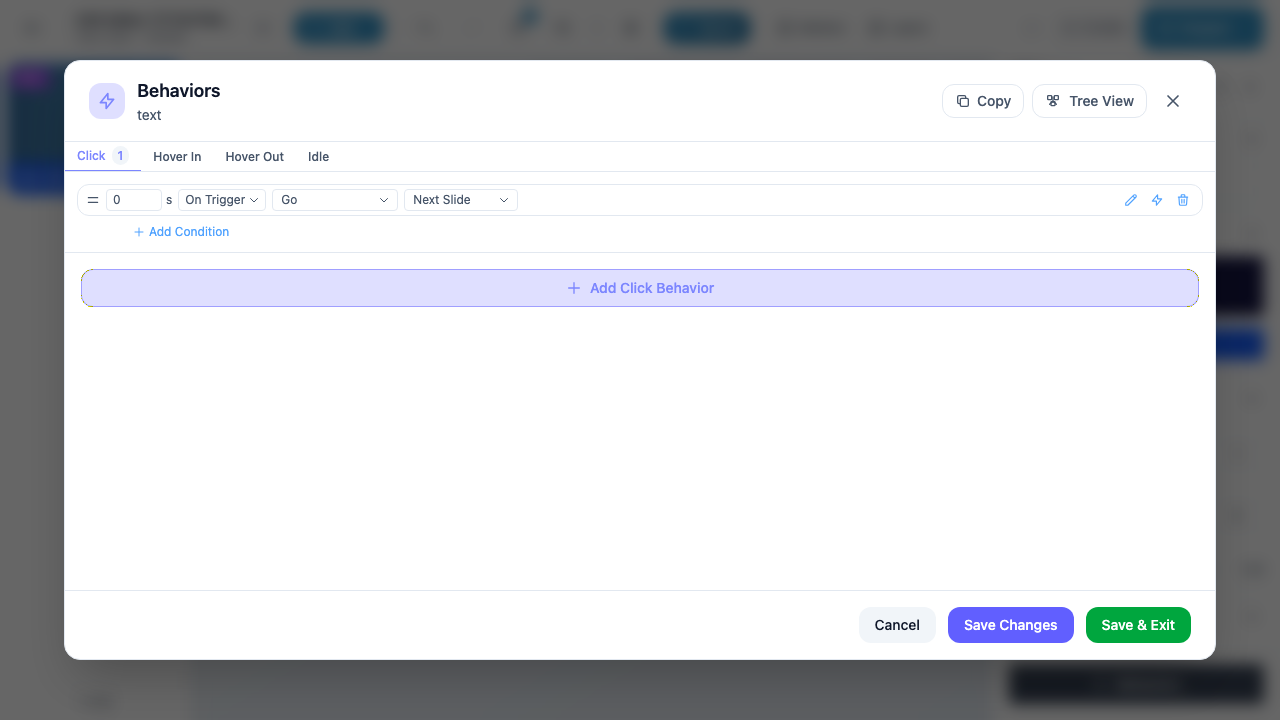
Below each saved behavior, you will see a + Add Condition link. Click it to add conditional logic that must be satisfied before the behavior executes. See Conditions for details.
Actions Available by Marker Type
The actions available in the dropdown depend on the type of marker you are editing and the type of slide it is on. The table below shows which action groups are available:
| Marker Type | Basic | Interactive | Advanced | Storage | LMS Tracking |
|---|---|---|---|---|---|
| Slide (background) | Go, Play, Show, Pause, Assign Score, Show Results | Hide, Zoom In/Out | – | Store, Call, Clear | All |
| Text, Shape, Icon, Link | Go, Play, Show, Pause, Assign Score, Show Results | Hide, Zoom In/Out | Remove, Disable, Enable, Animate | Store, Call, Clear | All |
| Image, Video, Audio | Go, Play, Show, Pause, Assign Score, Show Results | Hide, Zoom In/Out | Remove, Disable, Enable, Animate | Store, Call, Clear | All |
| Poll (container) | Go, Play, Show, Pause, Assign Score, Show Results | – | – | Store, Call, Clear | All |
| Poll options (T/F, Single, Multi) | Go, Play, Show, Pause, Assign Score, Show Results | Hide, Zoom In/Out | Remove, Disable, Enable, Animate | Store, Call, Clear | All |
| 3D Icon, 3D Shape, 3D Object | Go, Play, Show, Pause, Assign Score, Show Results | Hide, Zoom In/Out | Remove, Disable, Enable, Animate | Store, Call, Clear | All |
Common Behavior Patterns
Here are some frequently used behavior configurations:
- Click to navigate: Click trigger + Go action + Next Slide target – the most basic “next slide” button
- Hover to reveal: Hover In trigger + Show action + select a hidden marker – reveal additional information on hover
- Auto-play media: Idle trigger + Play action + select a video marker – auto-start a video when no interaction occurs
- Quiz feedback: Poll Option trigger + Show action + select a feedback marker – show correct/incorrect feedback based on poll answer
- Sequential reveal: Multiple Show actions with increasing delays using “On Trigger” timing – reveal markers one after another
- Chained actions: First action with “On Trigger”, second with “After Previous” and 0s delay – run actions back-to-back in sequence