
3D Markers
3D markers are interactive objects rendered as true three-dimensional geometry in the scene. Unlike 2D markers that are projected as flat overlays, 3D markers have depth, can be viewed from any angle, and support physics-based interactions like grabbing, collision, and scanning.
3D markers are only available on VR/3D and AR slide types. They do not appear in the QuickAdd modal when you are editing a VR/360 slide.
3D Marker Type Summary
| Marker Type | Code | Available On | Key Features |
|---|---|---|---|
| 3D Icon | 3dic |
VR/3D, AR | ~95 pre-built 3D models, grab/collide/scan triggers |
| 3D Shape | 3dsh |
VR/3D, AR | Cube, Sphere, Cylinder, Plane primitives, grab/collide/scan triggers |
| 3D Object | 3dob |
VR/3D, AR | Custom GLB/GLTF models, animations, grab/collide/scan/step triggers |
Info
On VR/3D and AR slides, you can use both 2D and 3D markers together. Text, 2D Icon, Link, Shape, Image, Video, Audio, and Poll markers all work alongside 3D markers on these slide types. The only marker type restricted from 3D/AR slides is Stream (VR/360 only).
How 3D Markers Differ from 2D Markers
| Feature | 2D Markers (VR/360) | 3D Markers (VR/3D, AR) |
|---|---|---|
| Positioning | X, Y, Z on the panoramic sphere | Full XYZ world-space coordinates |
| Rotation | Limited rotation on the sphere surface | Full 3-axis rotation (pitch, yaw, roll) |
| Scale | Uniform scale slider | Per-axis scale (X, Y, Z) or uniform |
| Depth | Flat overlays | True 3D geometry with depth |
| Physics | None | Gravity, collision detection |
| Grabbable | No | Yes (VR controllers / AR gestures) |
| Additional triggers | None | Grab, Collide, Scan, and more |
| Transform gizmos | Drag on canvas | Translate, rotate, and scale handles |
The 3D Canvas Environment
When you edit a VR/3D slide, the editor displays a 3D environment with a grid floor that serves as a spatial reference for placing markers. You can:
- Orbit the camera by clicking and dragging on the canvas background
- Pan the camera with middle-click drag or Shift + click drag
- Zoom with the scroll wheel
- Select markers by clicking on them in the canvas or the Layers panel
When a 3D marker is selected, transform controls appear around it:
- Translate mode – Drag the colored arrows to move along X (red), Y (green), or Z (blue) axes
- Rotate mode – Drag the colored rings to rotate around each axis
- Scale mode – Drag the colored handles to resize along each axis
3D Icons
3D Icons are pre-built three-dimensional icon models that you can place in your scene. They are rendered as actual 3D geometry, meaning viewers can see them from different angles as they move through the environment.
Creating a 3D Icon
- Click Add in the toolbar to open the QuickAdd modal
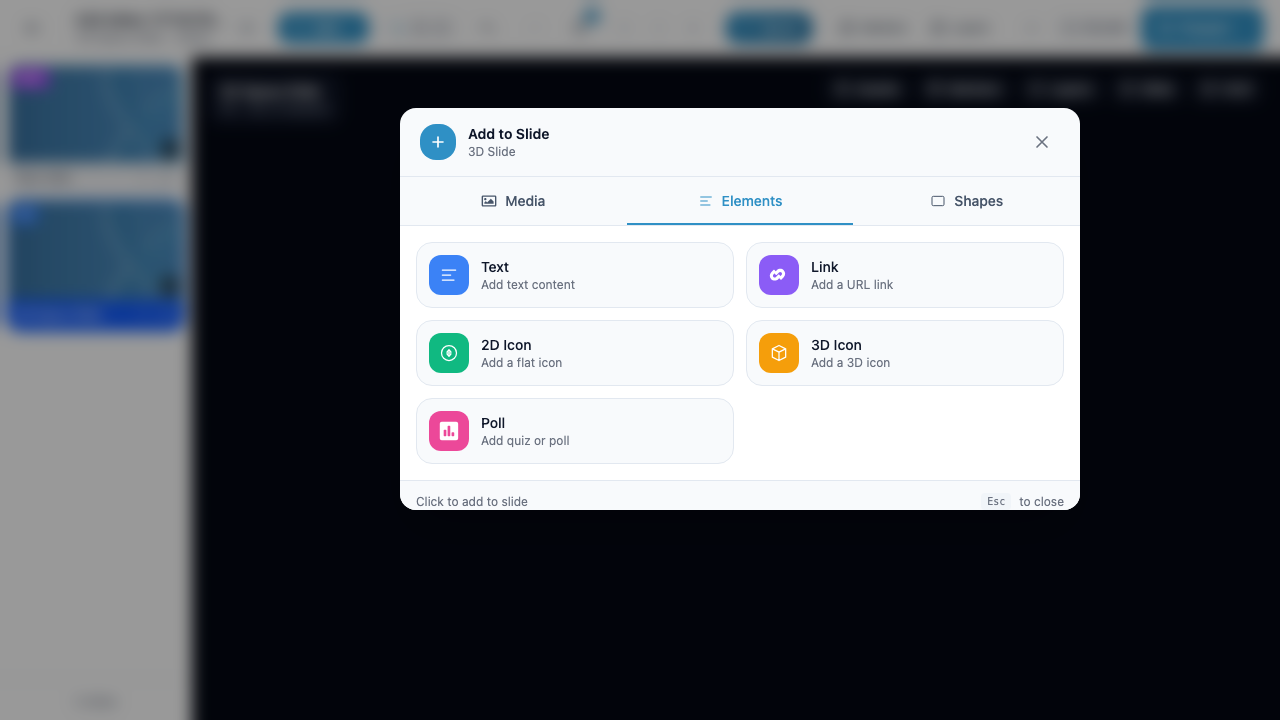
- Go to the Elements tab – you will see the 3D Icon option (with an orange icon) alongside the standard 2D elements
- Click 3D Icon (“Add a 3D icon”)
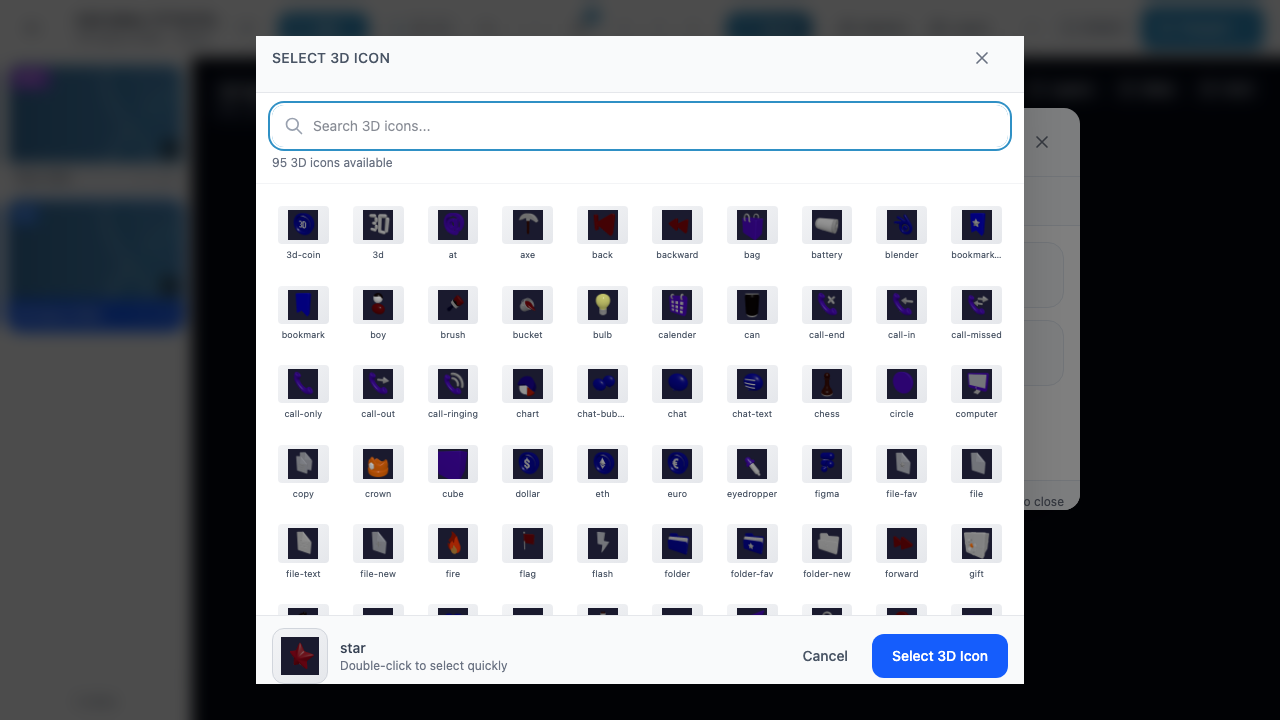
- Browse or search the 3D icon library (~95 icons available)
- Select an icon and click Select 3D Icon
3D Icon Library
The 3D icon library contains approximately 95 pre-built models covering a variety of common objects and symbols. Examples include:
- Technology – computer, phone, battery, blender, USB
- Communication – chat, call-in, call-out, chat-bubble
- Files – file, file-new, file-text, folder, folder-new
- Finance – coin, dollar, euro, crown
- Navigation – forward, back, backward, bookmark
- Objects – bag, brush, bucket, bulb, calendar, chess, gift
Tip
Use the search bar at the top of the 3D icon selector to filter icons by name. You can also double-click an icon to select it immediately.
3D Icon Properties
- Icon – The selected 3D icon model (click to change)
- Color – Customize the icon color/material
- Transform – Position (X, Y, Z), Rotation (X, Y, Z), and Scale
3D Icon Triggers
In addition to the common triggers (click, hover in, hover out, idle), 3D Icons support:
| Trigger | Description |
|---|---|
| Grab | Fires when a user grabs the icon with a VR controller or AR gesture |
| Collide | Fires when the icon collides with another 3D object in the scene |
| Scan | Fires when the icon is scanned in AR mode |
3D Shapes
3D Shapes are geometric primitives that you can add to your scene. They are useful as building blocks for environments, interactive elements, platforms, buttons, or visual accents.
Creating a 3D Shape
- Click Add in the toolbar
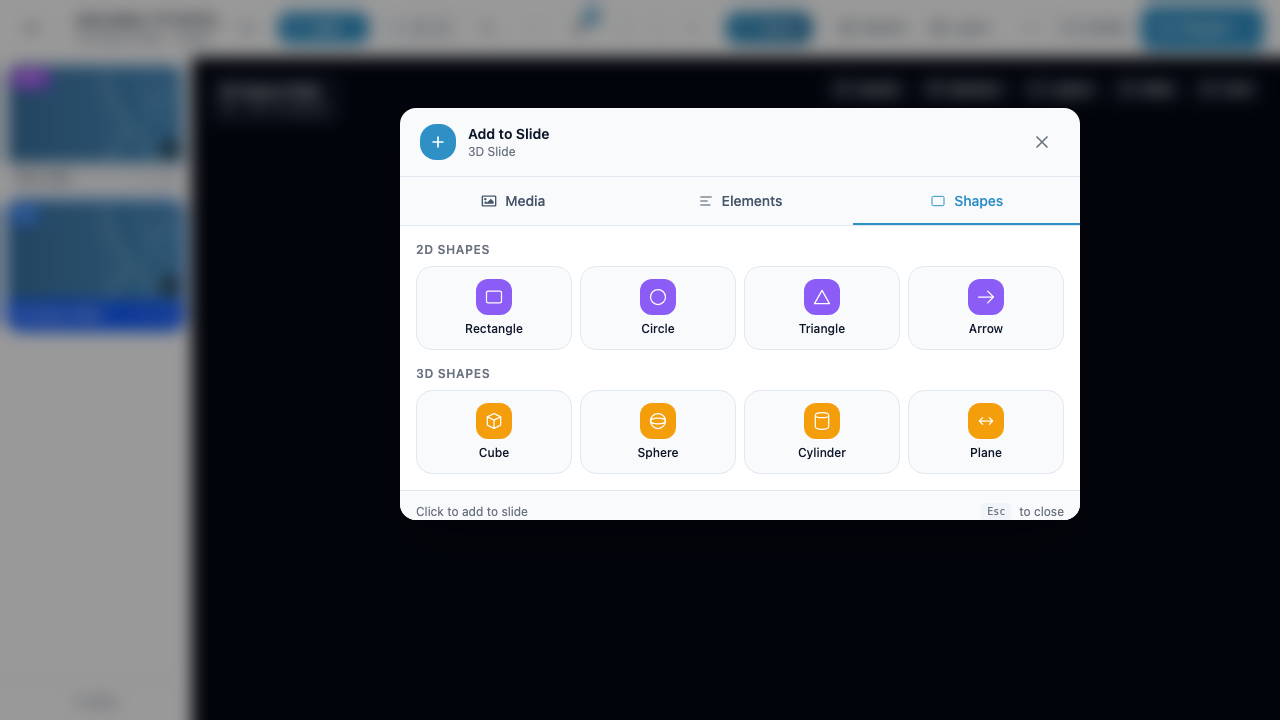
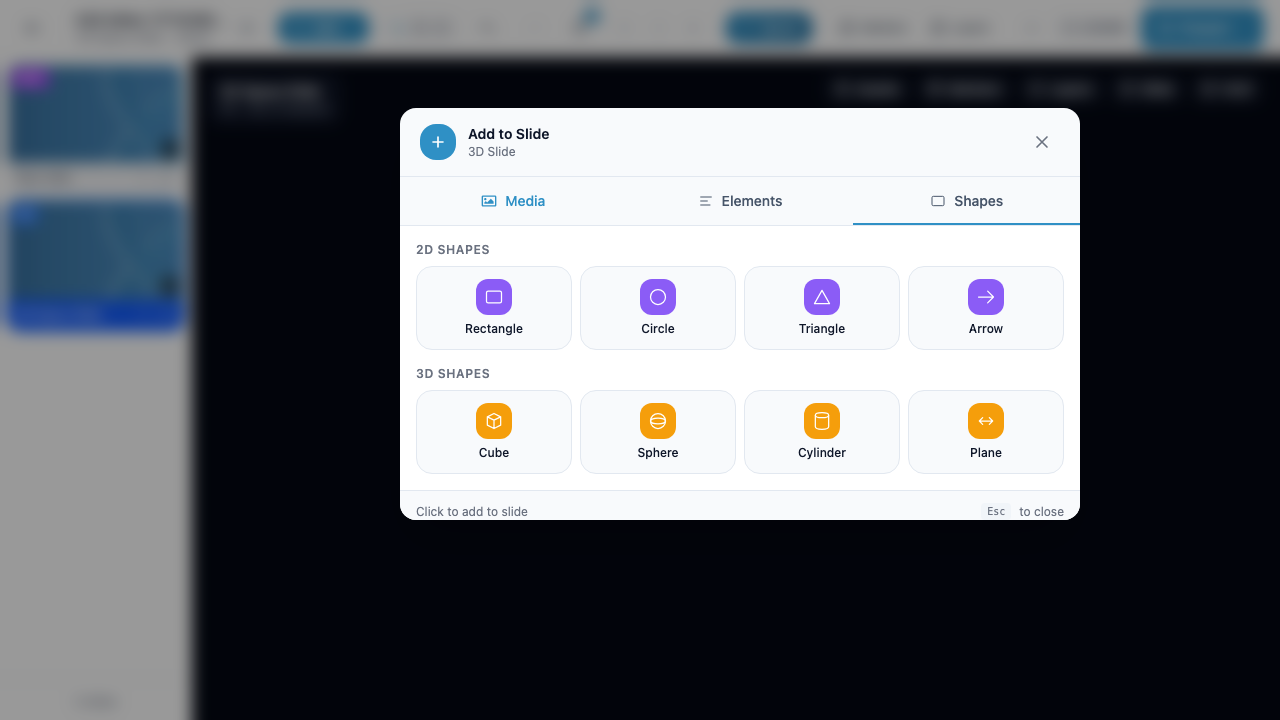
- Go to the Shapes tab – on VR/3D and AR slides, you will see a 3D Shapes section below the standard 2D shapes
- Click one of the available 3D shapes
Available 3D Shapes
| Shape | Description | Use Cases |
|---|---|---|
| Cube | A six-sided box | Platforms, buttons, building blocks, walls |
| Sphere | A smooth sphere | Orbs, balls, planets, waypoints |
| Cylinder | A cylindrical tube | Pillars, pipes, pedestals, tokens |
| Plane | A flat rectangular surface | Floors, screens, projection surfaces |
3D Shape Properties
- Type – The shape primitive (Cube, Sphere, Cylinder, Plane)
- Color – Set the material color using the color picker or hex value
- Transform – Position (X, Y, Z), Rotation (X, Y, Z), and Scale (X, Y, Z)
3D Shape Triggers
In addition to the common triggers, 3D Shapes support:
| Trigger | Description |
|---|---|
| Grab | Fires when a user grabs the shape with a VR controller or AR gesture |
| Collide | Fires when the shape collides with another 3D object |
| Scan | Fires when the shape is scanned in AR mode |
Tip
Combine 3D shapes with the Hidden option and Show behaviors to reveal objects at specific moments during a presentation. A hidden cube, for instance, can appear as a reward after a correct quiz answer.
3D Objects
3D Objects let you import custom 3D models in GLB or GLTF format from your media library. This is the most flexible 3D marker type – you can bring in any model with custom geometry, materials, textures, and animations.
Creating a 3D Object
- Click Add in the toolbar
- Go to the Media tab
- Upload a GLB/GLTF file to your media library (or select an existing one)
- Click the 3D model to add it to the slide
Supported Formats
| Format | Extension | Description |
|---|---|---|
| GLB | .glb |
Binary glTF – single-file, compact, recommended |
| GLTF | .gltf |
JSON-based glTF – may reference external texture files |
Warning
For best compatibility, use GLB format. GLB packages all geometry, textures, and animations into a single binary file. GLTF files that reference external textures may not load correctly if the texture files are not also uploaded.
3D Object Properties
- Source – The media library GLB/GLTF file
- Transform – Position (X, Y, Z), Rotation (X, Y, Z), and Scale (X, Y, Z)
- Animations – If the model contains animations, you can control playback
3D Object Triggers
3D Objects support the most extensive set of triggers of any marker type. In addition to the common triggers (click, hover in, hover out, idle), they include:
| Trigger | Description |
|---|---|
| Grab | Fires when a user grabs the object with a VR controller or AR gesture |
| Collide | Fires when the object collides with another 3D object in the scene |
| Scan | Fires when the object is scanned in AR mode |
| Animation Start | Fires when a 3D animation on the model begins playing |
| Animation End | Fires when a 3D animation on the model finishes playing |
| Step In | Fires when a user enters the proximity zone around the object |
| Step Out | Fires when a user leaves the proximity zone around the object |
Info
Animation Start and Animation End triggers are unique to 3D Objects. They allow you to chain behaviors to model animations – for example, showing a text label when an animation finishes, or navigating to the next slide after a door-opening animation completes.
3D Object Physics
3D Objects can have physics properties enabled through marker options:
- Gravity – The object is affected by gravity and will fall until it hits another surface
- Grabbable – Users can pick up and move the object in VR/AR
3D Markers on AR Slides
AR (Augmented Reality) slides support the same set of 3D markers as VR/3D slides. When editing an AR slide, the QuickAdd modal shows both 2D and 3D marker options.
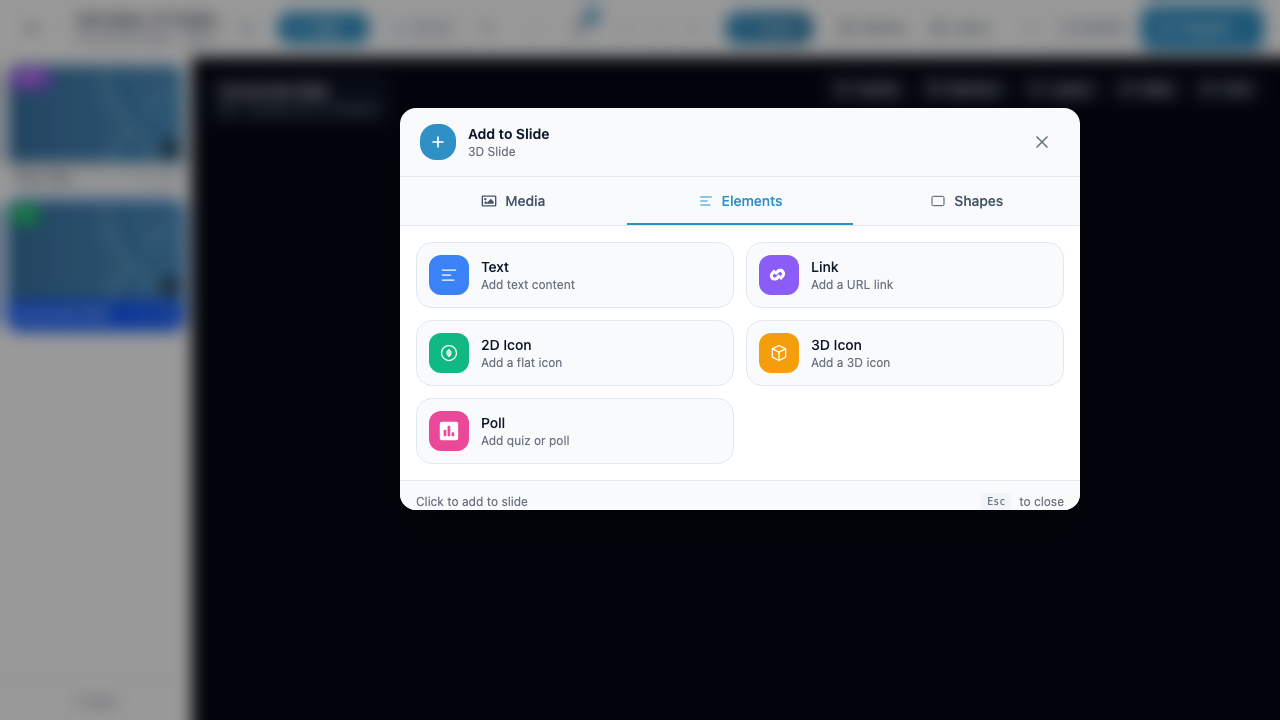
The key differences when working with 3D markers on AR slides:
| Feature | VR/3D Slides | AR Slides |
|---|---|---|
| Environment | Dark scene with grid floor | Camera passthrough (real world) |
| Placement | Relative to the 3D world origin | Anchored to real-world surfaces or image targets |
| Scan trigger | Available but less common | Primary use case for AR detection |
| User movement | Virtual locomotion | Physical movement in the real world |
Tip
On AR slides, use the Scan trigger on 3D Icons, Shapes, and Objects to create interactive experiences that respond when a user points their device at a specific real-world target.
2D Markers on 3D/AR Slides
You are not limited to 3D-only markers on VR/3D and AR slides. The following 2D marker types also work on these slide types:
| 2D Marker | Available on VR/3D | Available on AR |
|---|---|---|
| Text | Yes | Yes |
| 2D Icon | Yes | Yes |
| Link | Yes | Yes |
| Shape (2D) | Yes | Yes |
| Image | Yes | Yes |
| Video | Yes | Yes |
| Audio | Yes | Yes |
| Poll | Yes | Yes |
| Stream | No | No |
On 3D/AR slides, 2D markers like Text and Image gain the Collide trigger that is not available on VR/360 slides. This means you can detect when a 3D object physically intersects with a 2D marker.
Warning
Stream markers are VR/360 only. They do not appear in the QuickAdd modal on VR/3D or AR slides. See 2D Markers on VR/360 for details.
Complete Trigger Reference by 3D Marker Type
| Trigger | 3D Icon | 3D Shape | 3D Object |
|---|---|---|---|
| Click | Yes | Yes | Yes |
| Hover In | Yes | Yes | Yes |
| Hover Out | Yes | Yes | Yes |
| Idle | Yes | Yes | Yes |
| Grab | Yes | Yes | Yes |
| Collide | Yes | Yes | Yes |
| Scan | Yes | Yes | Yes |
| Animation Start | No | No | Yes |
| Animation End | No | No | Yes |
| Step In | No | No | Yes |
| Step Out | No | No | Yes |