
Marker Options
Marker options are toggle switches that control how a marker behaves during a live presentation or preview. They are found in the Options section of the Properties panel, and they determine visibility, interactivity, and physics behavior for each individual marker.
Accessing Options
- Select a marker on the canvas or in the Layers panel
- Press P to open the Properties panel (if it is not already open)
- Scroll down to the Options section and click the chevron to expand it
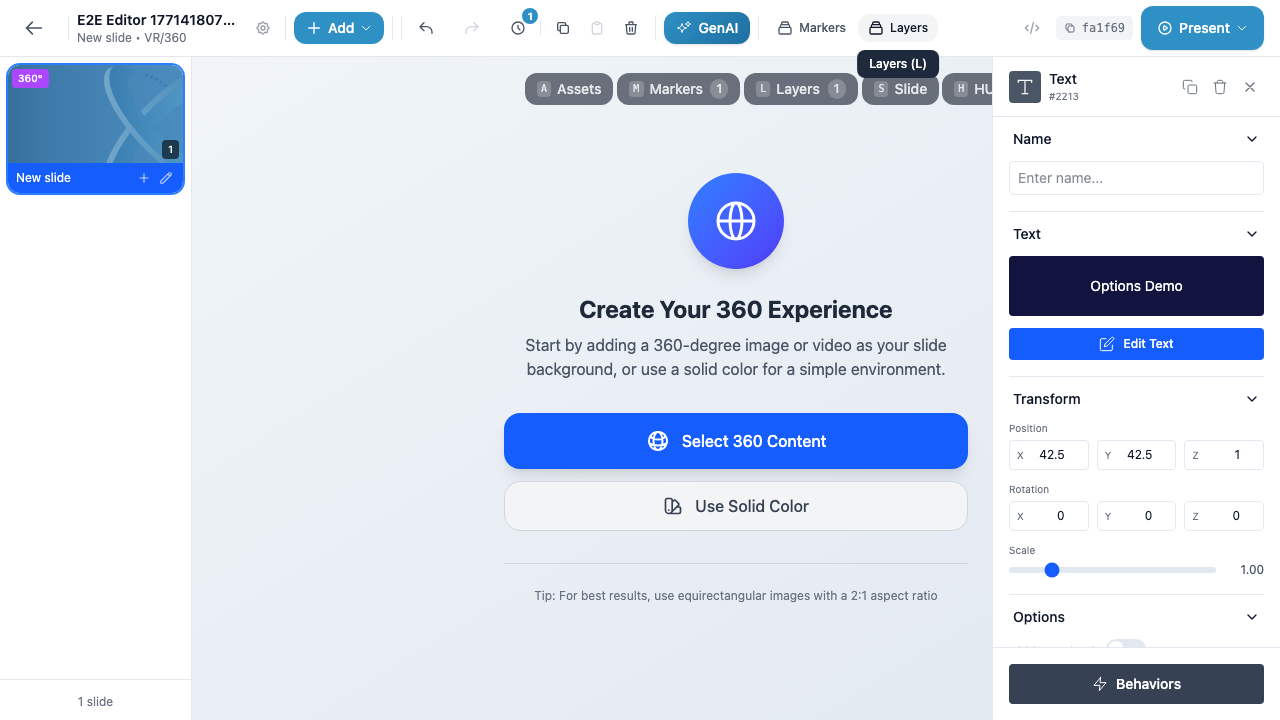
Each option is a simple on/off toggle. Click the toggle to enable or disable it. Changes are saved automatically.
Available Options
The following table summarizes all marker options. Some options are only available on specific marker or slide types.
| Option | Available On | Default | Description |
|---|---|---|---|
| Hidden | All markers | Off | Marker is invisible when the presentation starts |
| Disabled | All markers | Off | Marker cannot be interacted with by users |
| Track | All markers | Off | Marker follows the user’s field of view |
| Grabbable | 3D markers only | Off | Users can grab and move the marker in VR/AR |
| Gravity | 3D markers only | Off | Marker is affected by physics gravity |
| Collidable | 3D markers only | Off | Marker participates in collision detection |
Option Details
Hidden
When Hidden is enabled, the marker is invisible when the slide first loads during a presentation. The marker still exists in the scene – it simply is not rendered.
Hidden markers are commonly used with Behaviors to create reveal effects. For example, you can set a marker as hidden and then use a Show action on another marker’s click trigger to make it appear at the right moment.
Key points:
- Hidden markers are still visible in the editor (shown with reduced opacity) so you can continue to edit them
- Hidden markers retain all their behaviors and properties – only their visibility at presentation start is affected
- You can show a hidden marker during a presentation using the Show or Toggle Visibility behavior actions
- A hidden marker’s behaviors still fire normally. For example, a hidden marker with an Idle trigger will still execute its action even while hidden
Tip
Use Hidden combined with a Show behavior to build step-by-step reveals, guided tours, or quiz feedback that only appears after the user answers a question.
Disabled
When Disabled is enabled, the marker is visible but users cannot interact with it. Click, hover, and grab triggers on the marker will not fire.
This is useful when you want to display information without allowing interaction, or when you want to temporarily deactivate a marker’s interactivity without removing its behaviors.
Key points:
- Disabled markers are still visible on the slide
- All behavior triggers on a disabled marker are suppressed
- The marker can still be targeted by other markers’ behaviors (e.g., another marker’s click behavior can show, hide, or remove a disabled marker)
Info
The Disabled option only affects user interaction during presentations. You can still select, move, and edit a disabled marker in the editor.
Track
When Track is enabled, the marker follows the user’s gaze and stays in their field of view as they look around the 360-degree or 3D environment. The marker appears to “float” in front of the user regardless of which direction they face.
This is ideal for persistent UI elements that should always be visible, such as:
- Navigation buttons (next slide, previous slide)
- Instructions or help text
- Progress indicators
- Persistent controls like a “Menu” button
Key points:
- Tracked markers remain at a fixed position relative to the user’s view, not at a fixed world position
- On VR/360 slides, tracking keeps the marker in front of the user as they pan the 360 view
- On 3D/AR slides, the marker follows the user’s head movement
Warning
Avoid enabling Track on too many markers at once. Multiple tracked markers can clutter the user’s view and create a confusing experience. Reserve tracking for essential UI elements only.
Grabbable (3D Markers Only)
When Grabbable is enabled, users can pick up and move the marker using VR controllers or AR gestures. This option is only available on 3D marker types (3D Icon, 3D Shape, 3D Object) placed on VR/3D or AR slides.
Grabbable markers enable hands-on interaction in immersive environments, such as:
- Moving puzzle pieces into place
- Picking up and examining 3D objects
- Drag-and-drop activities in training scenarios
Key points:
- Grabbable markers can have a Grab behavior trigger that fires when the user picks up the object
- The marker’s position updates in real time as the user moves it
- When the user releases the marker, it stays at the new position (unless Gravity is also enabled)
Gravity (3D Markers Only)
When Gravity is enabled, the marker is affected by simulated physics gravity. It will fall downward when the presentation starts (or when it is shown via a behavior) until it hits a surface or another collidable marker.
This option is only available on 3D marker types on VR/3D or AR slides.
Key points:
- Gravity requires a physics-enabled scene to produce visible effects
- Combine with Collidable so the marker stops falling when it hits a surface
- Combine with Grabbable to let users pick up an object that then falls when released
Tip
Enable both Gravity and Grabbable to create realistic pick-up-and-drop interactions. The user grabs the object, moves it, and when they let go it falls naturally.
Collidable (3D Markers Only)
When Collidable is enabled, the marker participates in collision detection with other collidable markers in the scene. This means it can physically block or interact with other 3D objects.
This option is only available on 3D marker types on VR/3D or AR slides.
Key points:
- Collidable markers can trigger Collide behavior triggers when they contact another collidable marker
- Use collisions to create interactive physics puzzles, drop zones, or trigger areas
- A collidable marker without gravity acts as a static surface that other objects can land on
Info
For a collision to be detected between two markers, both markers must have the Collidable option enabled. If only one marker is collidable, they will pass through each other.
Options and Behavior Triggers
Several marker options directly relate to specific behavior triggers. The following table shows how options enable or interact with triggers:
| Option | Related Trigger | Relationship |
|---|---|---|
| Hidden | show, hide, toggle_visibility |
Hidden markers are common targets for Show/Hide actions from other markers |
| Disabled | All triggers | Disabling a marker suppresses all of its own triggers |
| Grabbable | grab |
The Grab trigger only fires on markers with Grabbable enabled |
| Collidable | collide |
The Collide trigger only fires when two collidable markers touch |
| Gravity | (none directly) | Gravity causes movement that can result in collisions, indirectly triggering Collide |
| Track | (none directly) | Tracking changes position behavior but does not add or remove triggers |
Common Patterns
Here are some frequently used combinations of options and behaviors:
Step-by-Step Reveal
- Create several text or image markers and enable Hidden on each
- Create a “Next” button marker with Track enabled so it stays visible
- Add a Click behavior on the button with a Show action targeting the first hidden marker
- Chain additional Click behaviors to reveal markers in sequence
Interactive 3D Object
- Create a 3D Object marker and enable Grabbable and Collidable
- Create a target zone (3D Shape marker) with Collidable enabled
- Add a Collide behavior on the target zone with a Show action to display a success message
Persistent Navigation
- Create a shape or icon marker for your navigation button
- Enable Track so it follows the user’s view
- Add a Click behavior with a Go to Next Slide action
Tip
You can combine multiple options on a single marker. For example, a 3D object can be Grabbable, Collidable, and have Gravity all at the same time for a fully physics-enabled interactive object.