
Slide Types
Slides are the building blocks of every ARuVR presentation. Each slide represents a single scene or environment that your audience will experience. ARuVR supports three distinct slide types, each designed for a different kind of immersive experience.
VR/360 (360-Degree Panorama)
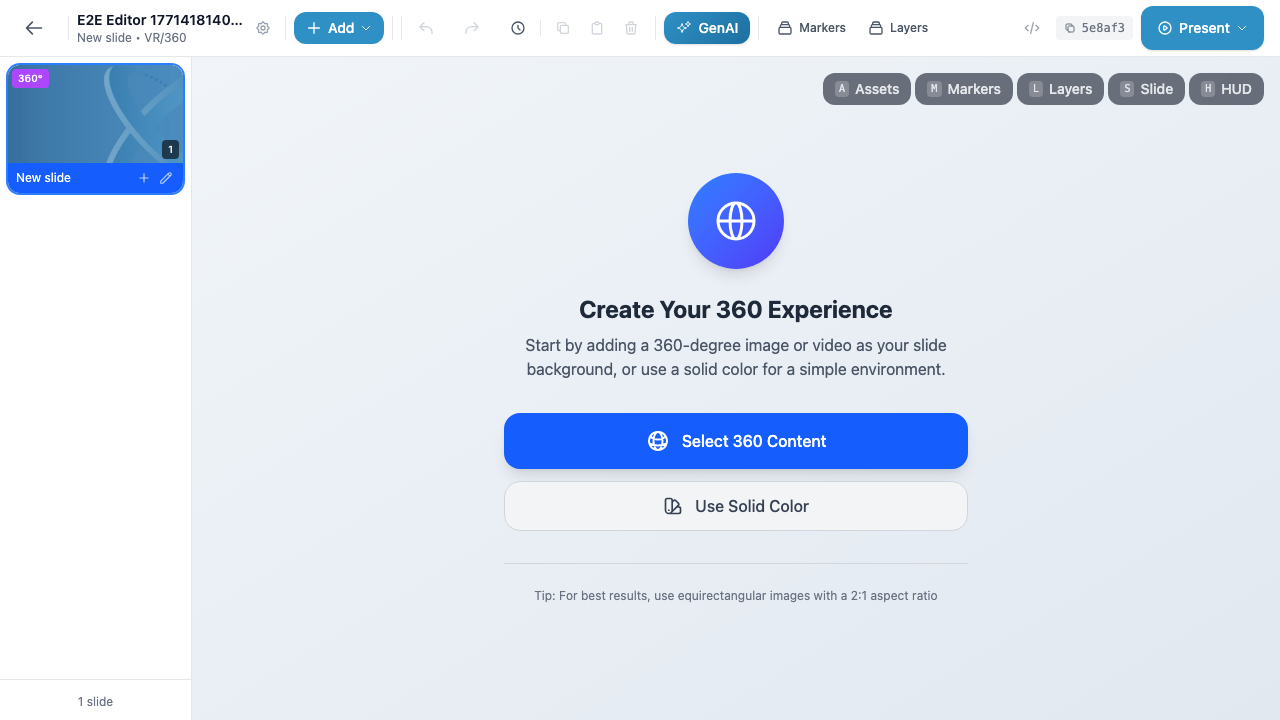
VR/360 slides display an equirectangular 360-degree image or video as the background environment. When presenting, the audience can look around in every direction — up, down, left, right — as if standing inside a panoramic photograph or video.
You place 2D markers (text, icons, shapes, images, video, audio, links, polls, and streams) on top of the panorama. These markers are pinned to specific positions in the 360-degree space and face the viewer as they look around.
Best for:
- Virtual tours (real estate, museums, campuses)
- 360 photo/video walkthroughs
- Training scenarios captured with a 360 camera
- Any content where real-world imagery is the primary backdrop
Tip
For the best visual quality, use equirectangular images with a 2:1 aspect ratio (e.g., 4096 x 2048 pixels). The editor displays this recommendation when you create a new VR/360 slide.
Supported markers on VR/360
All 2D marker types are available: Text, 2D Icon, 2D Shape, Link, Image, Video, Audio, Poll, and Stream. 3D markers (3D Icon, 3D Shape, 3D Object) are not available on VR/360 slides.
VR/3D (3D Environment)
VR/3D slides provide a full three-dimensional environment with a grid floor and open 3D space. Instead of a flat panoramic backdrop, you work in true 3D — placing, rotating, and scaling objects along all three axes (X, Y, Z).
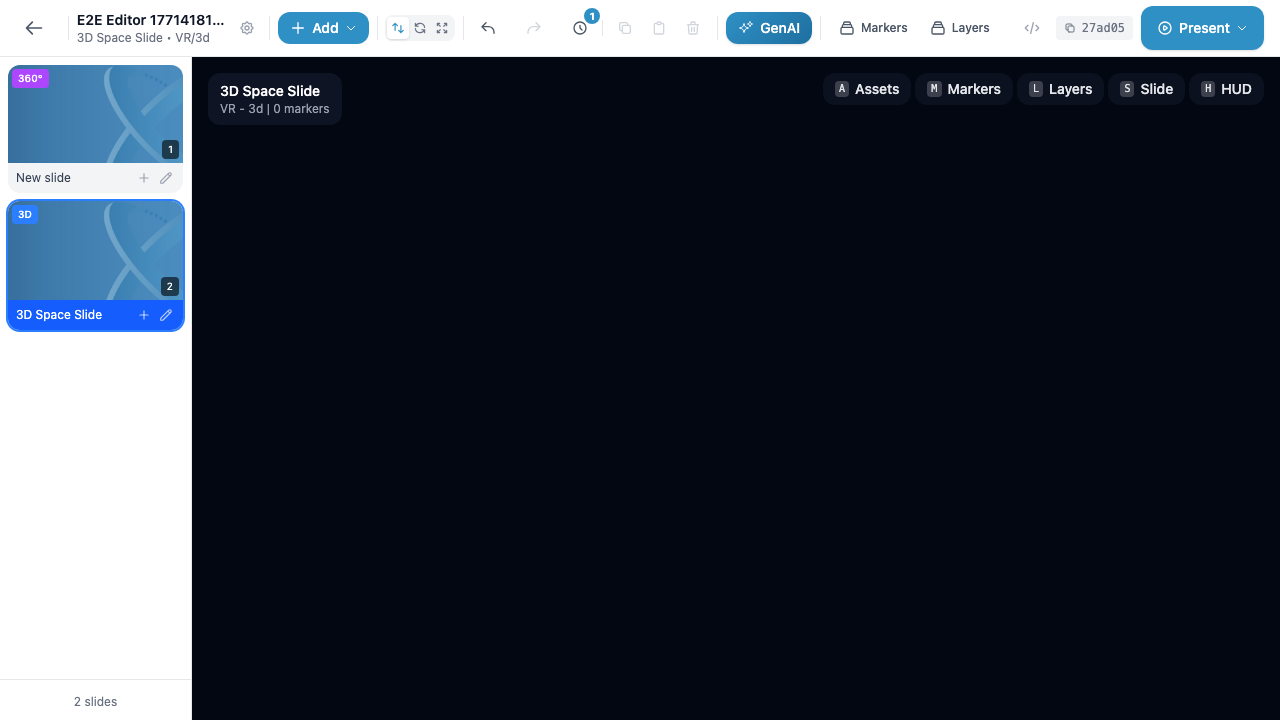
You can place both 2D markers and 3D markers (3D icons, 3D shapes, 3D objects with animations) in the scene. This gives you full creative control over spatial layouts.
Best for:
- Interactive 3D product showcases
- Virtual classrooms or training environments
- Architectural or engineering visualizations
- Gamified learning experiences with grabbable objects
Info
VR/3D slides show a dark environment with a reference grid floor by default. You can add 3D objects, shapes, and icons to build out the scene from scratch.
Supported markers on VR/3D
All 2D marker types except Stream: Text, 2D Icon, 2D Shape, Link, Image, Video, Audio, Poll. Plus all 3D marker types: 3D Icon, 3D Shape, 3D Object.
AR (Augmented Reality)
AR slides overlay interactive content onto the real world through a device’s camera. The audience sees their physical surroundings with your markers placed on top. AR slides come in several subtypes:
- Around Me — Content is anchored in the space around the user
- Around The Site — Content is placed relative to a physical location
- Single Trigger — Content appears when the user scans a specific image trigger
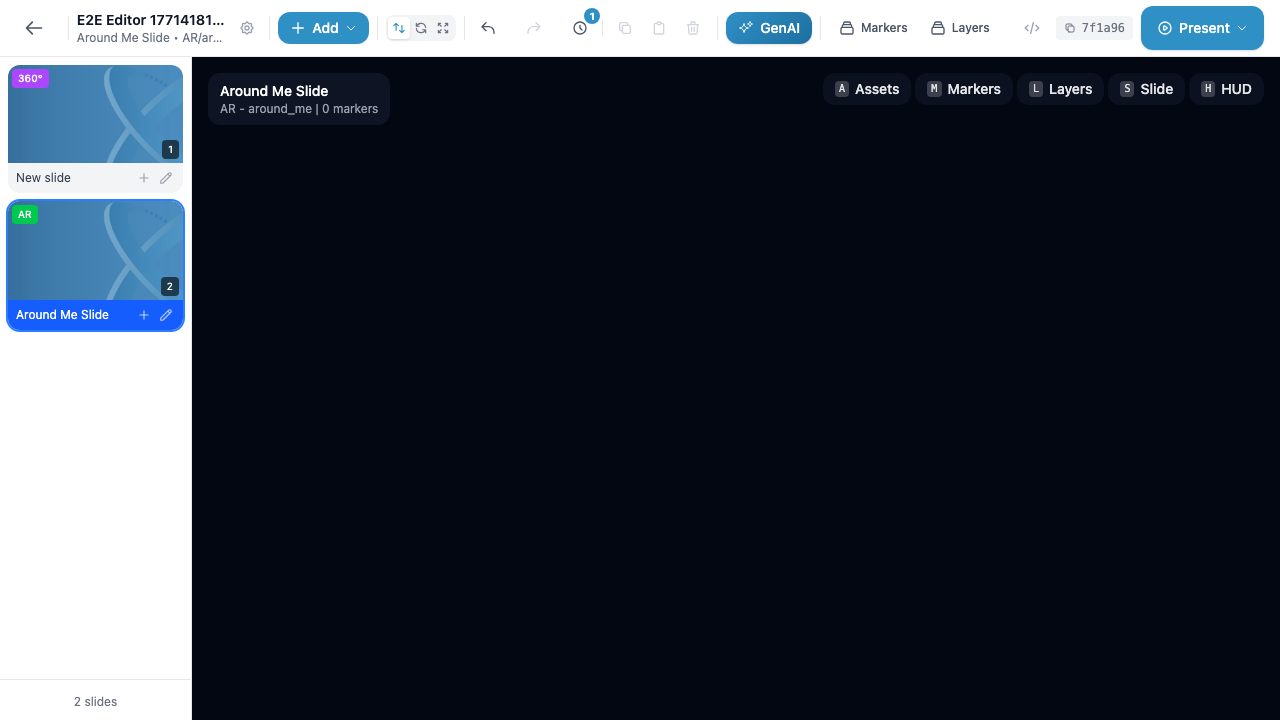
Like VR/3D slides, AR slides support both 2D and 3D markers, allowing you to place 3D objects that appear anchored in the real world.
Best for:
- On-site training with real equipment
- Museum or gallery overlays
- Interactive product packaging
- Location-based learning experiences
Supported markers on AR
All 2D marker types except Stream: Text, 2D Icon, 2D Shape, Link, Image, Video, Audio, Poll. Plus all 3D marker types: 3D Icon, 3D Shape, 3D Object.
Slide Type Comparison
| Feature | VR/360 | VR/3D | AR |
|---|---|---|---|
| 2D Markers (text, icons, shapes, media) | Yes | Yes | Yes |
| 3D Markers (3D icons, shapes, objects) | No | Yes | Yes |
| Stream marker | Yes | No | No |
| Background | 360 image/video or solid color | Dark 3D environment with grid | Real-world camera feed |
| Spatial control | 2D position on panorama | Full 3D (X, Y, Z) | Full 3D (X, Y, Z) |
Warning
You cannot change a slide’s type after it has been created. If you need a different slide type, create a new slide of the desired type and recreate your content on it.
Editor Layout Overview
When you open a slide in the editor, the interface is divided into several areas:
- Toolbar (top) — Contains the back arrow, presentation title, Settings gear icon, green + Add button, undo/redo controls, timer, copy/paste/duplicate/delete icons, the GenAI button, Markers and Layers toggles, and the green Present button.
- Slide sidebar (left) — Displays thumbnail previews of all slides in the presentation. Each thumbnail shows a type badge (360, 3D, or AR), a slide number, the slide name, and + / edit buttons.
- Canvas (center) — The main editing area where you view and interact with the current slide’s content. For VR/360, this shows the panorama; for VR/3D, the 3D environment; for AR, a dark preview area.
- Panels (right) — Contextual panels such as Assets, Markers, Layers, Slide, and HUD that can be toggled from the toolbar or the panel buttons at the top-right of the canvas.
- Slide count (bottom-left) — Shows the total number of slides in the presentation (e.g., “3 slides”).