
Navigation
The ARuVR sidebar is the primary way to move between different areas of the platform. It is always visible on the left side of the screen, giving you one-click access to every major section.
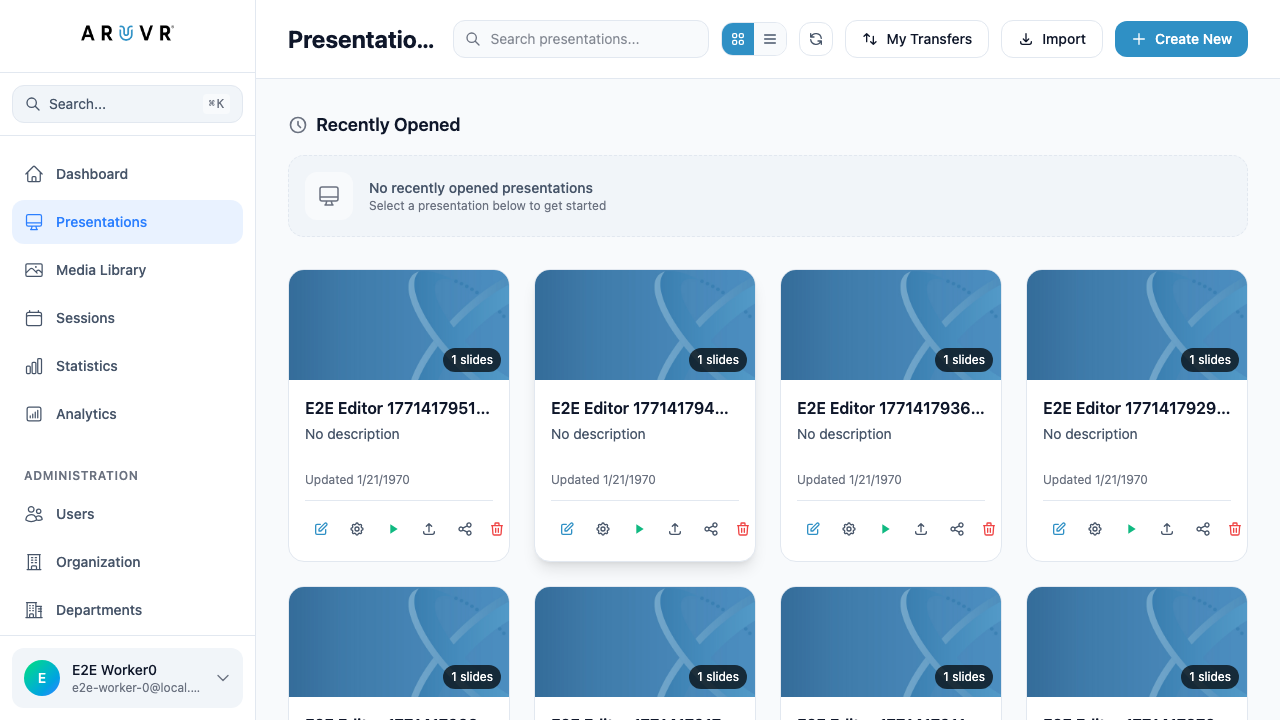
Sidebar Overview
The sidebar is organized into three groups from top to bottom:
- Global search – Quick-find anything on the platform.
- Main navigation – The core sections you use every day.
- Administration – Organization management tools (visible to admins only).
- User profile – Your account information at the very bottom.
The currently active section is highlighted in blue so you always know where you are.
Global Search
At the top of the sidebar is the Search… field with the keyboard shortcut Cmd + K (macOS) or Ctrl + K (Windows/Linux) displayed alongside it.
Clicking the search field – or pressing the shortcut from anywhere in the application – opens a global search overlay. From here you can quickly find:
- Presentations by name
- Media files in your library
- Sessions and other resources
Tip
Global search is the fastest way to navigate when you know what you are looking for. Press Cmd + K at any time instead of scrolling through long lists.
Main Navigation Items
Below the search field are the six core navigation links.
Dashboard
The Dashboard link takes you to the home screen. This is the landing page after login, providing an at-a-glance overview of your recent activity and quick access to key actions.
Presentations
The Presentations section is where you view, search, create, and manage all of your VR/AR presentations. This is typically where you will spend most of your time. Each presentation appears as a card (or list row) with its thumbnail, title, description, and action icons.
See Login & Dashboard for a full breakdown of the Presentations dashboard, or Presentations for details on creating and editing content.
Media Library
The Media Library is a centralized store for all of your uploaded media files – images, videos, audio clips, 3D objects, and more. From here you can:
- Upload new media files
- Browse and search your existing library
- Preview files before using them
- Delete files you no longer need
When you add a media marker (image, video, or audio) to a slide, you select the file from the Media Library.
Sessions
The Sessions section lets you create and manage live presentation sessions. A session is a scheduled event where one or more presenters deliver a VR/AR presentation to an audience in real time. From this page you can:
- Create new sessions with a name, date, and linked presentation
- View upcoming and past sessions
- Manage attendee invitations and access
- Monitor session status
See Sessions for a detailed guide.
Statistics
The Statistics section provides usage data about how your presentations are being consumed. This includes metrics such as:
- Number of views per presentation
- Session participation rates
- User engagement data
Use Statistics when you need a high-level summary of platform activity across your organization.
Analytics
The Analytics section offers deeper, presentation-level insights. Whereas Statistics gives you a broad overview, Analytics lets you drill down into individual presentations to understand:
- Which slides users spend the most time on
- Poll response data and distribution
- Completion rates and drop-off points
- Interaction patterns with markers and behaviors
Info
Both Statistics and Analytics require that presentations have been viewed or sessions have been completed. If you do not see any data, make sure your presentations have been delivered to an audience at least once.
Administration Section
Below the main navigation items, a section labeled ADMINISTRATION appears for users with admin permissions (Organization Admins and Super Admins). This section contains three management tools.
Users
The Users page lets administrators manage the people in their organization:
- View a list of all users with their name, email, and role
- Invite new users by email
- Edit user details and change roles (Presenter, Organization Admin)
- Deactivate or delete user accounts
Warning
Only Organization Admins and Super Admins can see the Administration section. If you do not see these options in your sidebar, your account has the Presenter role. Contact your organization administrator to request elevated permissions.
Organization
The Organization page displays your organization’s profile and settings:
- Organization name and details
- License information and seat usage
- Branding and configuration options
Organization Admins can update these settings. Presenters do not have access to this page.
Departments
The Departments page lets you organize users into logical groups within your organization. Departments are useful for:
- Grouping users by team, location, or function
- Filtering presentations and sessions by department
- Managing permissions and access at a department level
User Profile
At the very bottom of the sidebar, you will find your user profile showing:
- Avatar – A colored circle with your initial
- Display name – Your full name as set in your account
- Email address – The email associated with your login
Click on your profile to access account settings such as updating your name, changing your password, or signing out of the platform.
Tip
If you are signed into the wrong account, click your profile at the bottom of the sidebar and select Sign Out, then log in with the correct credentials.
Navigation Context
The sidebar remains visible whether you are on the dashboard or inside the editor. However, when you open a presentation in the editor, the main content area changes to the editing workspace (toolbar, slide sidebar, 3D canvas, and panels). The left sidebar navigation links still let you jump back to the dashboard or any other section at any time.
Next Steps
- Login & Dashboard – Detailed walkthrough of logging in and using the Presentations dashboard.
- Presentations – Create and manage VR/AR presentations.
- Markers – Add interactive elements to your slides.
- Behaviors – Define triggers, actions, and conditions for interactivity.
- Sessions – Present to live audiences.