
Presentations
A presentation is a self-contained package of immersive slides, each populated with interactive markers and behaviors that bring your VR/AR content to life.
Much like a slide deck in Microsoft PowerPoint, they are the foundational building block for creating and organizing content within ARuVR. Whether you are building a virtual training module, an interactive product demo, or an educational walkthrough, every project starts here.
The Presentations Dashboard
After logging in, you land on the presentations dashboard. This is your home screen for browsing, searching, and managing all of your presentations.
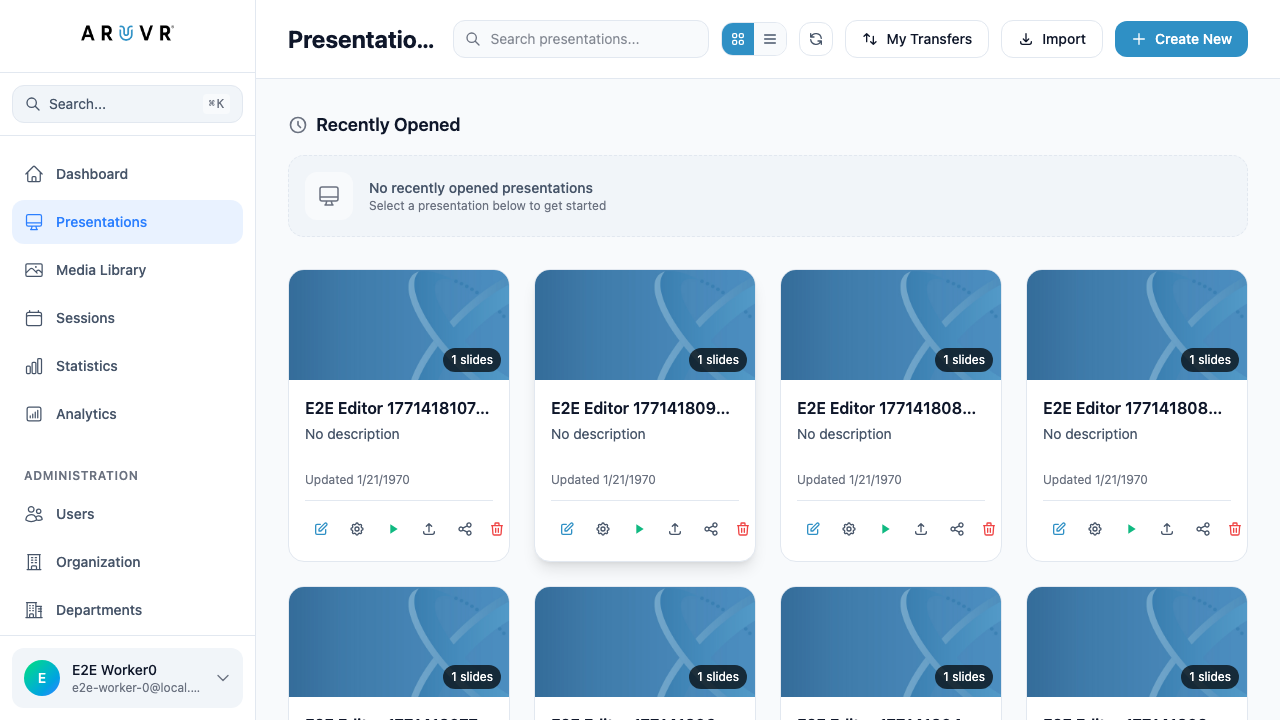
The dashboard is divided into several areas:
- Top bar – Contains a search bar, grid/list view toggles, the My Transfers button, an Import button, and the + Create New button.
- Recently Opened – A quick-access section at the top listing presentations you have worked on most recently.
- Presentation cards – The main content area displaying all of your presentations in a grid (or list) layout.
Presentation Cards
Each presentation is represented by a card. Cards display at a glance:
| Element | Description |
|---|---|
| Thumbnail | A blue preview image of the presentation (auto-generated or custom) |
| Title | The name you gave the presentation when creating or editing it |
| Description | A short summary shown below the title (or “No description” if none was provided) |
| Last updated date | When the presentation was last modified |
| Action icons | A row of six quick-action icons along the bottom of the card |
Action Icons
Every card has six action icons that let you perform common operations without opening the presentation:
| Icon | Action | Description |
|---|---|---|
| Pencil | Edit | Opens the presentation in the editor |
| Gear | Settings | Opens the presentation settings modal (see Settings) |
| Play | Present | Launches the presentation in present/preview mode |
| Upload | Export | Exports the presentation for download or transfer |
| Share | Share | Shares the presentation with other users or organizations |
| Trash | Delete | Deletes the presentation (see Deleting) |
Tip
Click anywhere on a presentation card (outside the action icons) to open it directly in the editor.
Creating a New Presentation
To create a new presentation, click the + Create New button in the top-right corner of the dashboard. This opens the Create Presentation modal.
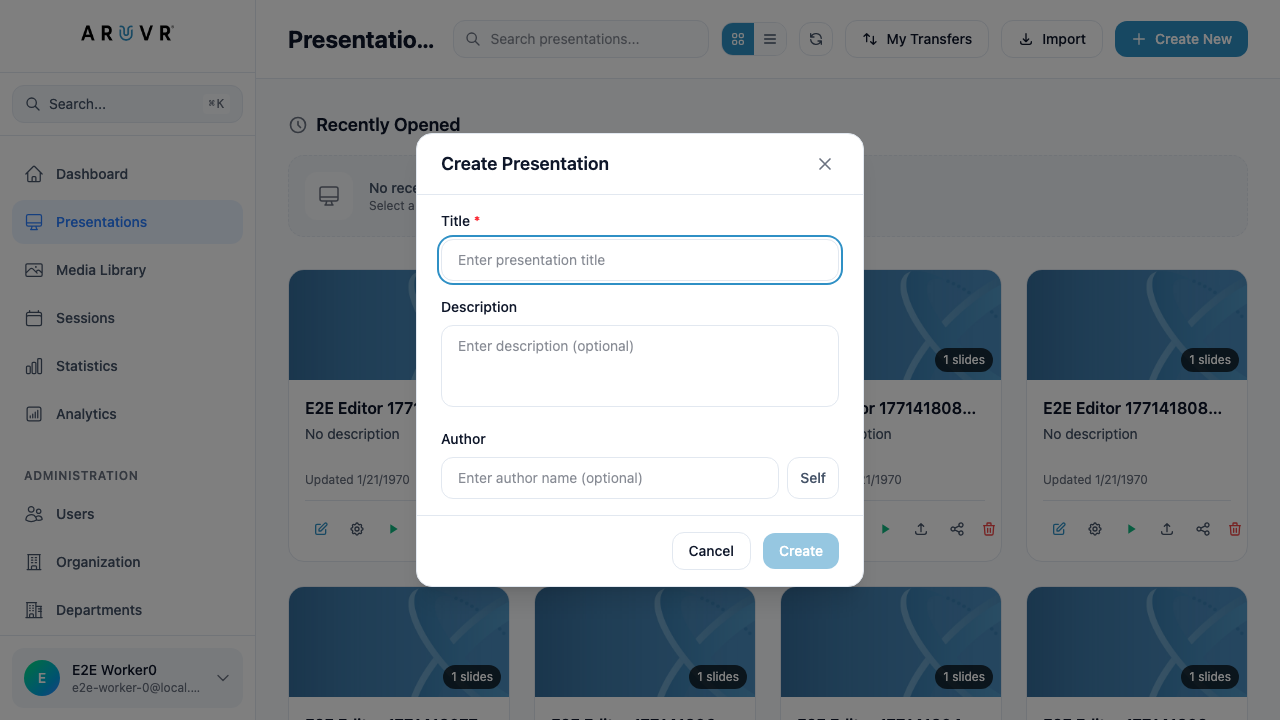
The modal contains three fields:
- Title (required) – Give your presentation a name. This field is marked with a red asterisk and must be filled in before you can proceed.
- Description (optional) – Add a brief summary describing what the presentation is about. This text appears on the presentation card and in search results.
- Author (optional) – Specify the author of the presentation. Click the Self button to automatically fill this field with your own name.
When you are ready, click the blue Create button. You will be taken directly into the editor with a blank VR/360 slide ready for content. If you change your mind, click Cancel to return to the dashboard without creating anything.
Info
Every new presentation starts with a single VR/360 slide. You can add more slides of any type once you are inside the editor.
Searching Presentations
Use the search bar at the top of the dashboard to filter presentations by name. As you type, the list updates to show only presentations whose titles match your search term.
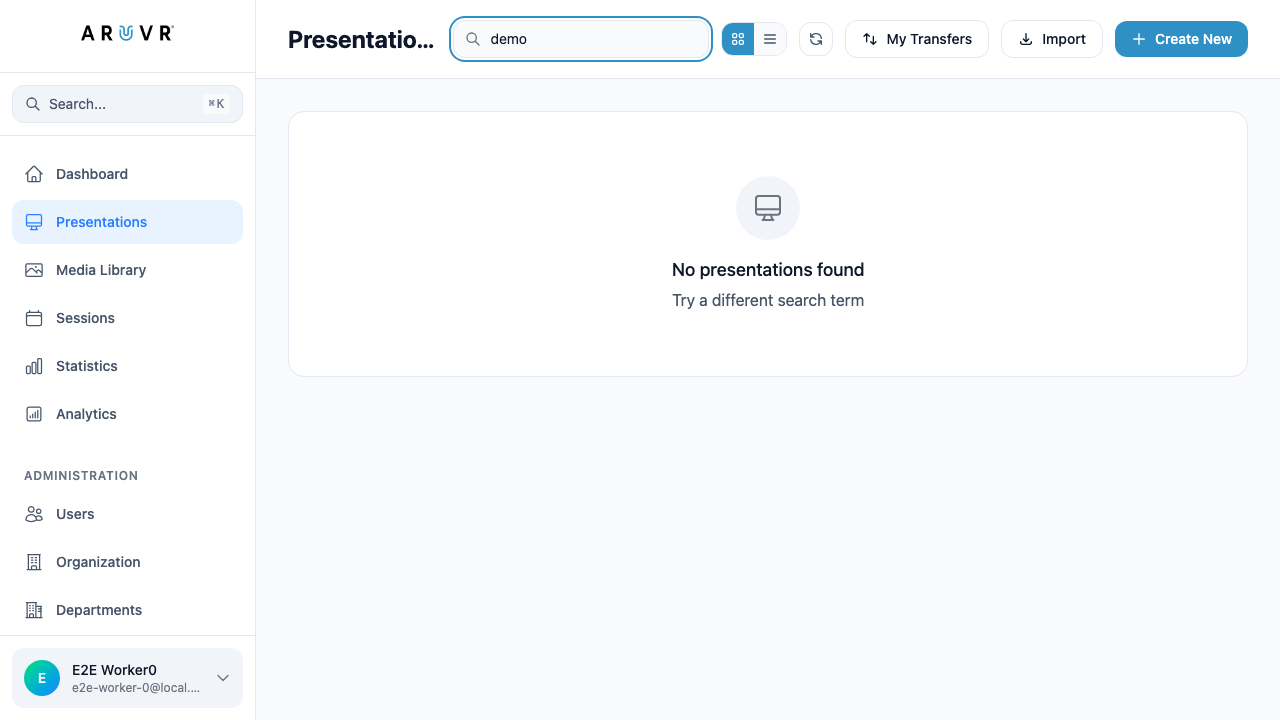
If no presentations match your search, ARuVR displays a friendly empty state with the message “No presentations found” and a suggestion to try a different search term.
Tip
The search is case-insensitive and matches partial names, so typing “demo” will find presentations named “Product Demo”, “Demo Walkthrough”, and so on.
Grid vs. List View
The dashboard supports two display modes, toggled by the icons next to the search bar:
- Grid view – Displays presentations as visual cards in a multi-column grid (default). Best for quickly scanning thumbnails.
- List view – Displays presentations in a compact, single-column list. Best for browsing large numbers of presentations by title and date.
Your view preference is remembered across sessions.
Import Presentations
Click the Import button in the top bar to import a previously exported presentation file. This is useful for:
- Restoring presentations from backups
- Importing presentations shared by colleagues via file transfer
- Moving presentations between ARuVR environments
Info
Imported presentations appear in your dashboard alongside your existing content. The import process preserves all slides, markers, behaviors, and media.
My Transfers
Click the My Transfers button to view the status of any ongoing or completed presentation transfers. Transfers include exports you have initiated and imports that are currently processing. This section helps you track large file operations that may take time to complete.
Recently Opened
The Recently Opened section appears at the top of the dashboard and shows the presentations you have most recently edited or viewed. This gives you one-click access to jump back into your current work without scrolling through the full list.
Next Steps
Once you have created or opened a presentation, you can:
- Configure presentation settings such as title, description, and playback options
- Add slides of different types (VR/360, VR/3D, AR)
- Create markers to add interactive content to your slides
- Define behaviors to make markers respond to user interactions