
Presentation Settings
The presentation settings modal lets you update metadata and configure playback options for your presentation. You can access it from the dashboard or from within the editor.
Opening Settings
There are two ways to open the settings modal:
- From the dashboard – Click the gear icon on any presentation card.
- From the editor – Click the Settings button (gear icon) in the editor toolbar while editing a presentation.
Both methods open the same Edit Properties modal.
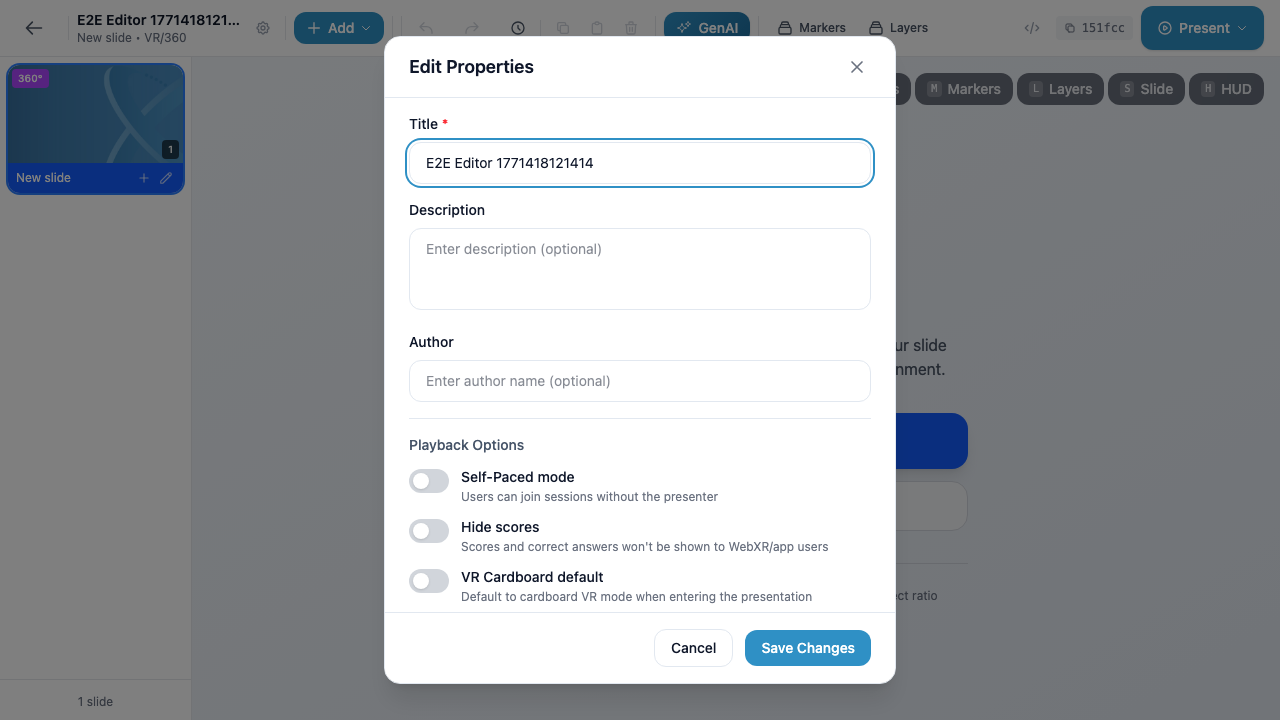
Metadata Fields
The top section of the modal contains three fields that describe your presentation:
Title (required)
The name of your presentation. This is the text displayed on the presentation card in the dashboard, in search results, and in the editor toolbar. The title field is required – you cannot save settings with an empty title.
Description
An optional text area where you can provide a brief summary of your presentation’s content. This description appears on the presentation card beneath the title. A clear description helps collaborators and session attendees understand what the presentation covers at a glance.
Author
An optional field for specifying who created the presentation. This is useful when multiple people in an organization create content and you want to attribute authorship. The author name may also appear in session contexts when presenting to an audience.
Tip
If you are the author, you do not need to type your name manually. Simply click the Self button next to the Author field to auto-populate it with your account name.
Playback Options
The lower section of the modal contains three toggle switches that control how the presentation behaves during live sessions and when viewed by attendees.
Self-Paced Mode
When enabled, attendees can join and navigate through the presentation on their own without waiting for a presenter to advance the slides. This is ideal for:
- Asynchronous training modules where learners work at their own speed
- Self-service demos available on-demand
- Kiosk-style setups at events or exhibitions
When disabled (the default), the presenter controls slide navigation for all attendees in the session.
Hide Scores
When enabled, scores and correct answers are hidden from WebXR and app users during poll interactions. This is useful when you want to:
- Prevent learners from seeing correct answers before submitting their own responses
- Run blind surveys where results are reviewed only by the presenter afterward
- Avoid bias in group settings where participants can see each other’s screens
When disabled (the default), scores and correct answers are shown to all users after they respond.
VR Cardboard Default
When enabled, the presentation defaults to Google Cardboard VR mode when attendees enter the presentation on a mobile device. This means the display automatically splits into a stereoscopic side-by-side view suitable for phone-based VR headsets.
When disabled (the default), the presentation opens in standard non-stereoscopic mode and users can manually switch to VR Cardboard mode if desired.
Info
The VR Cardboard default setting only affects mobile users. Desktop and standalone VR headset users are not impacted by this toggle.
Saving Changes
After making your changes, click the blue Save Changes button at the bottom of the modal to persist your updates. The modal will close and your changes take effect immediately – the updated title and description will be reflected on the dashboard card and in the editor.
If you want to discard your changes, click Cancel to close the modal without saving.
Warning
Changes are not saved automatically. If you close the modal without clicking Save Changes, all modifications will be lost.