
Behavior Triggers
Triggers define when a behavior activates. Each trigger is an event that occurs during a presentation – a user clicking a marker, a video finishing playback, a 3D object being grabbed in VR, and so on. The available triggers depend on the marker type and the slide type the marker is placed on.
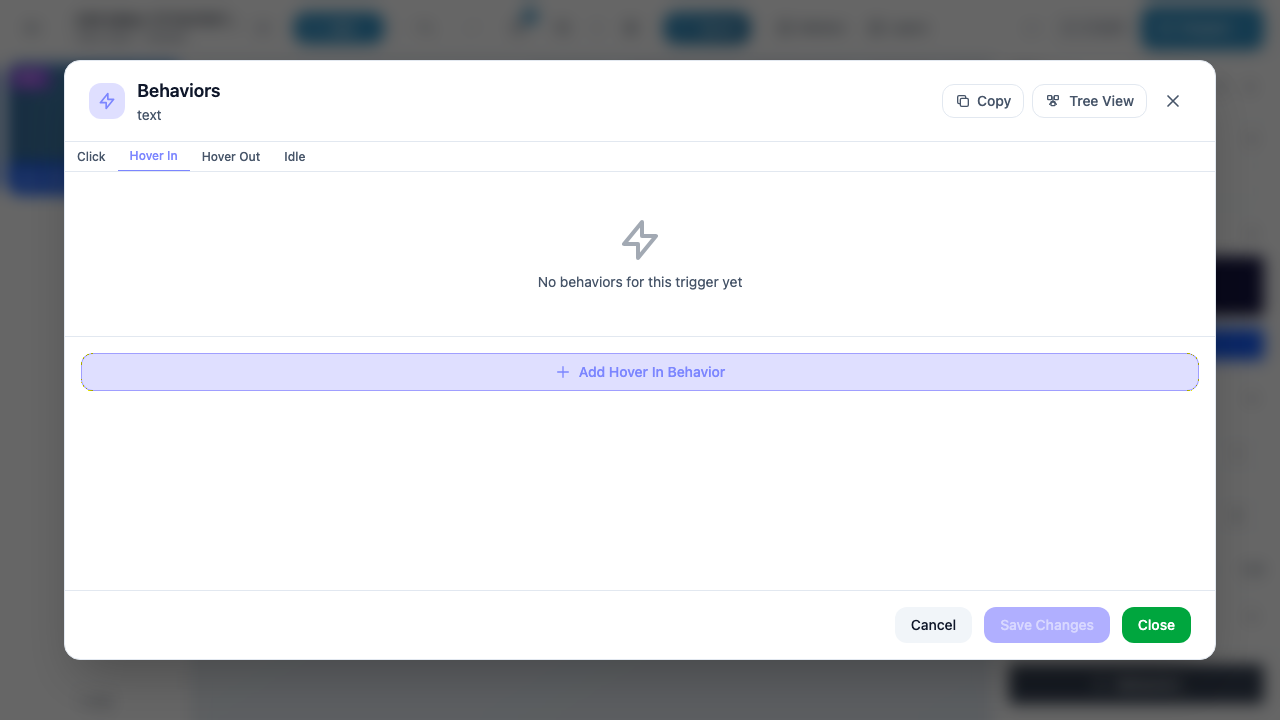
When you open the Behavior Editor for a marker, the triggers appear as tabs across the top of the modal. Click a tab to view and manage behaviors for that trigger.
Common Triggers
These four triggers are available on every marker type, on every slide type. They appear as the default tabs in the Behavior Editor.
| Trigger | Description |
|---|---|
| Click | Fires when the user clicks or taps the marker. In VR, this corresponds to a controller ray-cast click or gaze-and-dwell selection. This is the most commonly used trigger. |
| Hover In | Fires when the user’s gaze or cursor enters the marker’s bounds. In VR, this means the controller ray or head gaze begins intersecting the marker. Use this to show tooltips, highlight elements, or start animations on focus. |
| Hover Out | Fires when the user’s gaze or cursor leaves the marker’s bounds. Typically paired with Hover In to reverse an effect – for example, hiding a tooltip that was shown on Hover In. |
| Idle | Fires after a period of inactivity – when the user has not interacted with any marker for a defined duration. Use this for hints, auto-advancing content, or attracting the user’s attention back to the presentation. |
Tip
Click and Hover In / Hover Out are the most common trigger pair. A typical pattern is: Hover In shows a label or highlight, Hover Out hides it, and Click performs the main action (navigate, play video, etc.).
Media Triggers
These triggers are available on markers that contain playable media: Image, Video, and Audio markers. They fire in response to media playback events.
| Trigger | Available On | Description |
|---|---|---|
| Play | Image, Video, Audio | Fires when the media starts playing. For images, this fires when an animated image (e.g., GIF) begins. For video and audio, it fires when playback begins. |
| End Play | Image, Video, Audio | Fires when the media finishes playing. Use this to chain actions after a video completes – for example, showing a quiz or navigating to the next slide. |
Info
Media triggers are in addition to the four common triggers. A video marker has six trigger tabs: Click, Hover In, Hover Out, Idle, Play, and End Play.
3D Triggers
These triggers are available on 3D Icons (3dic) and 3D Shapes (3dsh) when placed on VR/3D or AR slides. They respond to spatial interactions unique to 3D environments.
| Trigger | Available On | Description |
|---|---|---|
| Grab | 3D Icon, 3D Shape | Fires when the user grabs the object using VR controllers. The grab action lets users pick up and manipulate 3D markers in space. |
| Collide | 3D Icon, 3D Shape | Fires when another 3D object collides with (touches) this marker. Used for drag-and-drop interactions, puzzle mechanics, or proximity-based triggers. |
| Scan | 3D Icon, 3D Shape | Fires when the user scans a QR code or AR marker that targets this object. Primarily used in AR experiences where physical-world scanning triggers digital content. |
Warning
3D triggers (Grab, Collide, Scan) only appear when the marker is on a VR/3D or AR slide. If you place a 3D Icon on a VR/360 slide (which is not possible through the UI but could occur via API), these triggers will not be available.
Collide on Media Markers
The Collide trigger is also available on Image (mimg) and Video (mvid) markers when placed on VR/3D or AR slides. This enables media elements to participate in collision-based interactions alongside 3D objects.
| Trigger | Available On (3D/AR slides only) | Description |
|---|---|---|
| Collide | Image, Video | Fires when a 3D object collides with this media marker on a 3D/AR slide. |
Collide on Element Markers
On VR/3D or AR slides, the Collide trigger also extends to basic element markers:
| Trigger | Available On (3D/AR slides only) | Description |
|---|---|---|
| Collide | Text, 2D Shape, 2D Icon | Fires when a 3D object collides with this element on a 3D/AR slide. |
3D Object Triggers
3D Object markers (3dob) – custom GLB/GLTF models you upload – support the broadest set of triggers. In addition to the common triggers and the 3D triggers above, they have four additional triggers related to model animations and spatial proximity.
| Trigger | Description |
|---|---|
| Grab | Fires when the user grabs the 3D model with VR controllers. |
| Collide | Fires when another object collides with this model. |
| Scan | Fires when the user scans a QR/AR marker targeting this model. |
| Animation Start | Fires when a built-in animation on the GLB model begins playing. Use this to synchronize other behaviors with the model’s animation timeline. |
| Animation End | Fires when a built-in animation on the GLB model finishes playing. Common use: trigger the next step in a sequence after an animation completes. |
| Step In | Fires when the user enters the object’s bounding area (proximity zone). Useful for triggering content when the user walks near an object in a VR/AR space. |
| Step Out | Fires when the user exits the object’s bounding area. Typically paired with Step In to reverse the effect – for example, hiding information when the user walks away. |
Tip
Step In / Step Out are especially powerful in room-scale VR and AR experiences. Place a 3D Object as an invisible trigger zone, then use Step In to show contextual information when the user physically walks into that area.
Poll Triggers
Poll markers have specialized triggers that fire based on the user’s answer selection. The available triggers depend on the poll subtype.
True/False Polls (polt)
True/False polls have exactly two options:
| Trigger | Description |
|---|---|
| Option 0 | Fires when the user selects the first option (typically “True” or “Yes”). |
| Option 1 | Fires when the user selects the second option (typically “False” or “No”). |
Single Answer Polls (pols)
Single Answer polls have up to four options:
| Trigger | Description |
|---|---|
| Option 0 | Fires when the user selects the first option. |
| Option 1 | Fires when the user selects the second option. |
| Option 2 | Fires when the user selects the third option. |
| Option 3 | Fires when the user selects the fourth option. |
Multiple Choice Polls (polm)
Multiple Choice polls have up to four options plus a correct-answer trigger:
| Trigger | Description |
|---|---|
| Option 0 | Fires when the user selects the first option. |
| Option 1 | Fires when the user selects the second option. |
| Option 2 | Fires when the user selects the third option. |
| Option 3 | Fires when the user selects the fourth option. |
| Correct Answer | Fires when the user selects the option designated as the correct answer. Use this to show a success message or award points without needing to know which specific option is correct. |
Info
Poll triggers are in addition to the common triggers. A True/False poll marker has six trigger tabs: Click, Hover In, Hover Out, Idle, Option 0, and Option 1.
Complete Trigger Matrix
The table below shows every trigger available for each marker type. Triggers marked with (3D/AR) are only available when the marker is on a VR/3D or AR slide.
| Trigger | Text | 2D Icon | 2D Shape | Link | Image | Video | Audio | Stream | 3D Icon | 3D Shape | 3D Object | Poll (T/F) | Poll (Single) | Poll (Multi) |
|---|---|---|---|---|---|---|---|---|---|---|---|---|---|---|
| Click | Yes | Yes | Yes | Yes | Yes | Yes | Yes | Yes | Yes | Yes | Yes | Yes | Yes | Yes |
| Hover In | Yes | Yes | Yes | Yes | Yes | Yes | Yes | Yes | Yes | Yes | Yes | Yes | Yes | Yes |
| Hover Out | Yes | Yes | Yes | Yes | Yes | Yes | Yes | Yes | Yes | Yes | Yes | Yes | Yes | Yes |
| Idle | Yes | Yes | Yes | Yes | Yes | Yes | Yes | Yes | Yes | Yes | Yes | Yes | Yes | Yes |
| Play | – | – | – | – | Yes | Yes | Yes | – | – | – | – | – | – | – |
| End Play | – | – | – | – | Yes | Yes | Yes | – | – | – | – | – | – | – |
| Grab | – | – | – | – | – | – | – | – | Yes | Yes | Yes | – | – | – |
| Collide | (3D/AR) | (3D/AR) | (3D/AR) | – | (3D/AR) | (3D/AR) | – | – | Yes | Yes | Yes | – | – | – |
| Scan | – | – | – | – | – | – | – | – | Yes | Yes | Yes | – | – | – |
| Animation Start | – | – | – | – | – | – | – | – | – | – | Yes | – | – | – |
| Animation End | – | – | – | – | – | – | – | – | – | – | Yes | – | – | – |
| Step In | – | – | – | – | – | – | – | – | – | – | Yes | – | – | – |
| Step Out | – | – | – | – | – | – | – | – | – | – | Yes | – | – | – |
| Option 0 | – | – | – | – | – | – | – | – | – | – | – | Yes | Yes | Yes |
| Option 1 | – | – | – | – | – | – | – | – | – | – | – | Yes | Yes | Yes |
| Option 2 | – | – | – | – | – | – | – | – | – | – | – | – | Yes | Yes |
| Option 3 | – | – | – | – | – | – | – | – | – | – | – | – | Yes | Yes |
| Correct Answer | – | – | – | – | – | – | – | – | – | – | – | – | – | Yes |
Summary
- All markers get Click, Hover In, Hover Out, and Idle.
- Media markers (Image, Video, Audio) add Play and End Play.
- 3D markers (3D Icon, 3D Shape, 3D Object) add Grab, Collide, and Scan.
- 3D Objects additionally get Animation Start/End and Step In/Out.
- Element and media markers on 3D/AR slides gain the Collide trigger.
- Poll markers add option-specific triggers based on their subtype.
Next Steps
- Actions – Learn what actions you can perform when a trigger fires
- Conditions – Add conditional logic so behaviors only execute when criteria are met
- Behaviors Overview – Return to the Behavior Editor overview